Your organisation, the people in it, your plan, and your data.
Find your way around Settings
Who can do this: Administrators
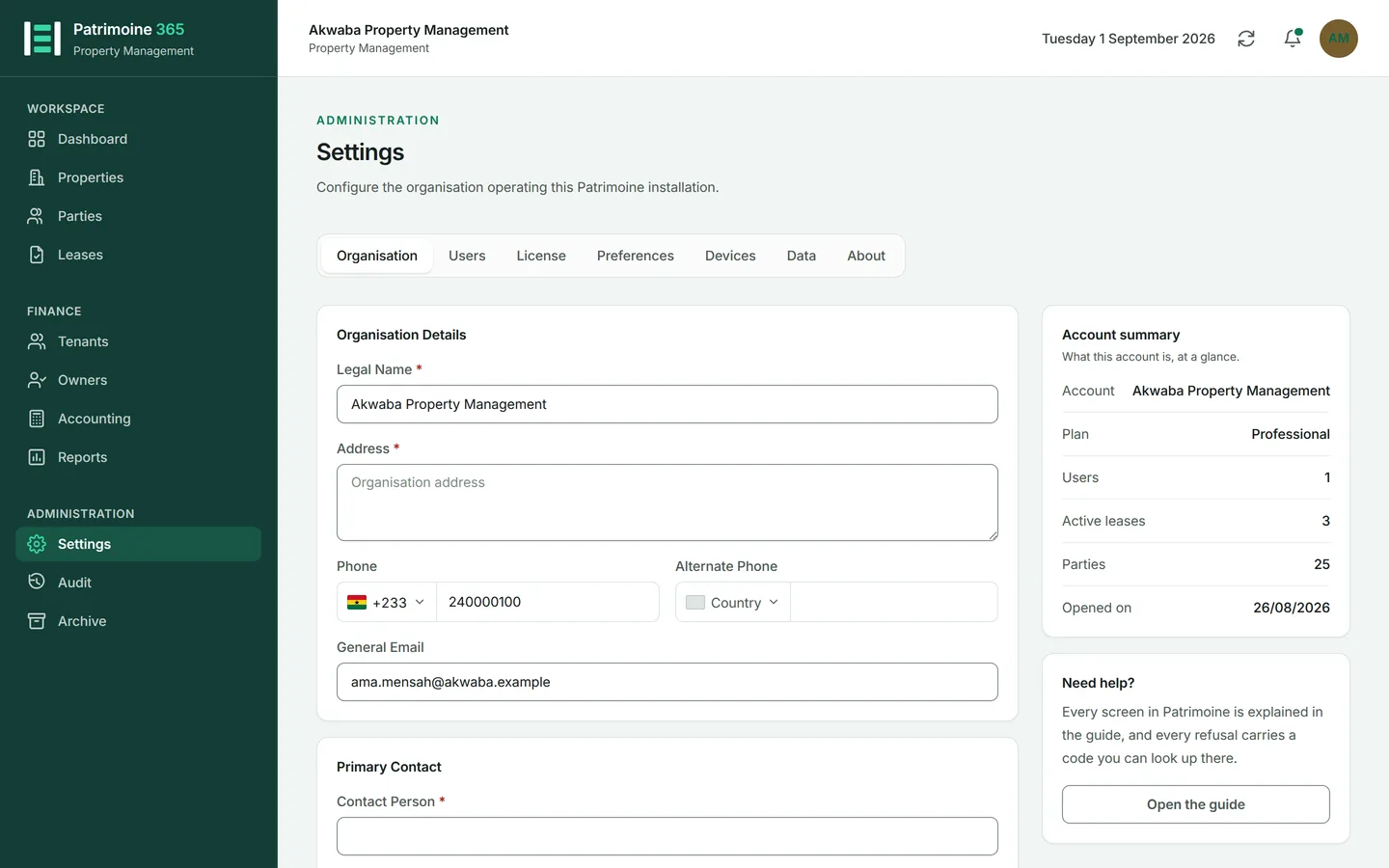
Settings holds the whole of the account: the organisation itself, the people who can sign in, and your plan.
1
Open Settings from the Administration group in the sidebar.
2
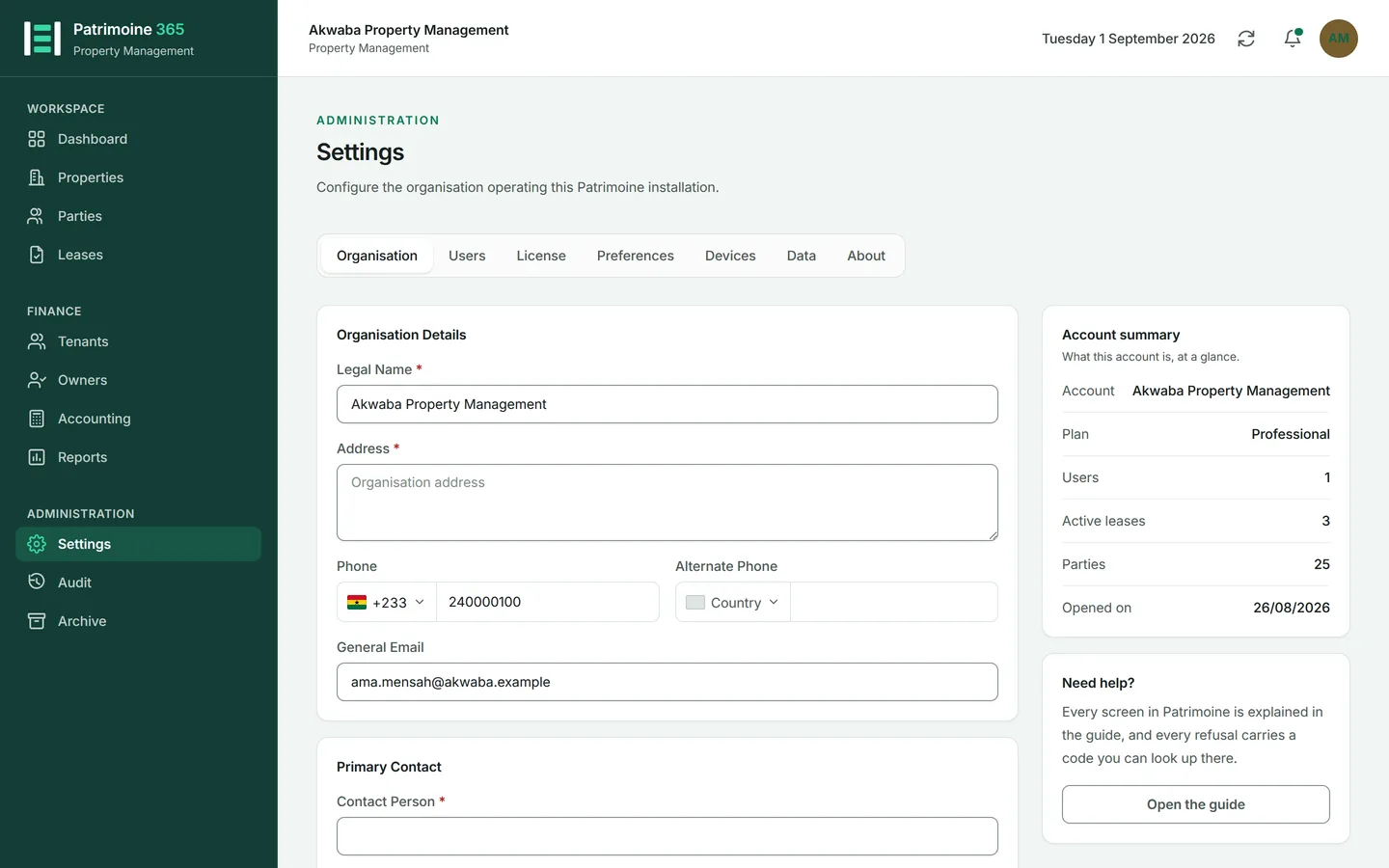
Organisation holds your own details, which appear on every document you produce.
3
Users, Licence, Preferences, Data and About are the other tabs. The older /users and /license addresses still work and open the right tab.
4
The panel beside the form summarises the account: your plan, the people, the leases, the parties, and when the account was opened.
Set your organisation details
Who can do this: Administrators
These are what a tenant or an owner sees on an invoice, a receipt or a statement, so they are worth getting right once.
1
Open Settings and stay on the Organisation tab.
2
Fill in the name, address, telephone number with its country, and email address.
3
Add the registration and tax numbers if your documents must carry them.
4
Add the bank details that should appear on invoices.
5
Press Save. New documents carry the new details; documents already produced are unchanged.
Invite a colleague
Who can do this: Administrators
People are invited by email and set their own password. Nobody else ever knows it, including you.
1
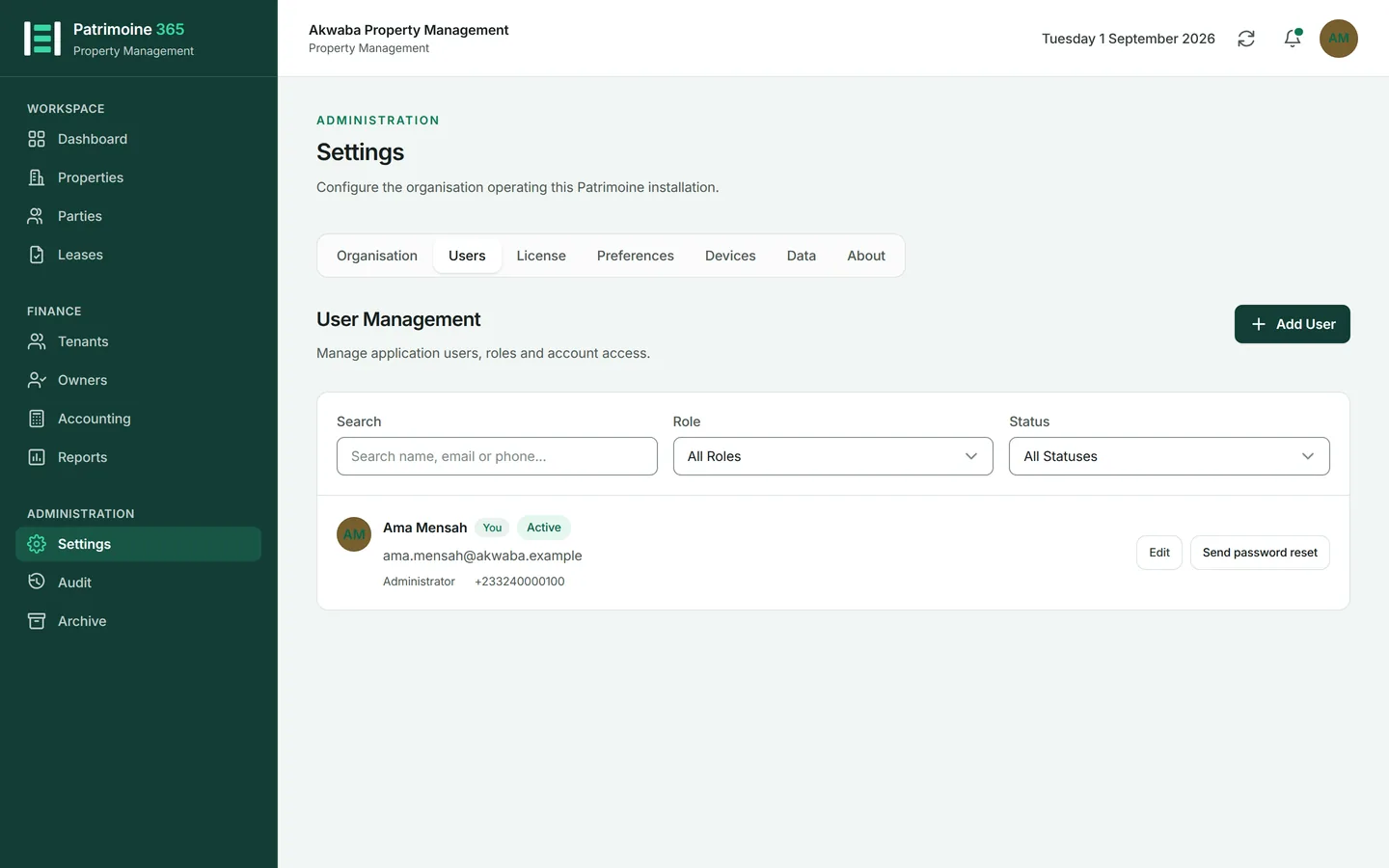
Open Settings and choose the Users tab.
2
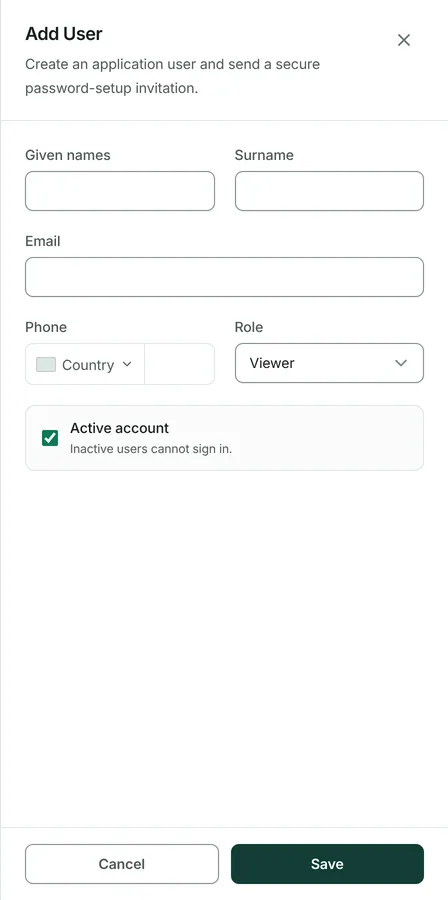
Press Add user.
3
Enter their name and email address, and choose the role they should have.
4
Press Save. They are emailed an invitation.
5
They follow the link, set a password, and can then sign in with a code like everybody else.
Change a role or switch somebody off
Who can do this: Administrators
A role can be changed at any time, and takes effect the next time that person loads a screen. Somebody who has left is deactivated rather than deleted, so the history of what they did stays readable.
1
Open Settings, choose Users, and press Edit on the person.
2
Change the role and press Save.
3
To stop somebody signing in, switch them to inactive. Their sessions end and their tokens stop working immediately.
4
Their name stays on everything they did. The activity log is not rewritten.
See your plan and what it allows
Who can do this: Administrators
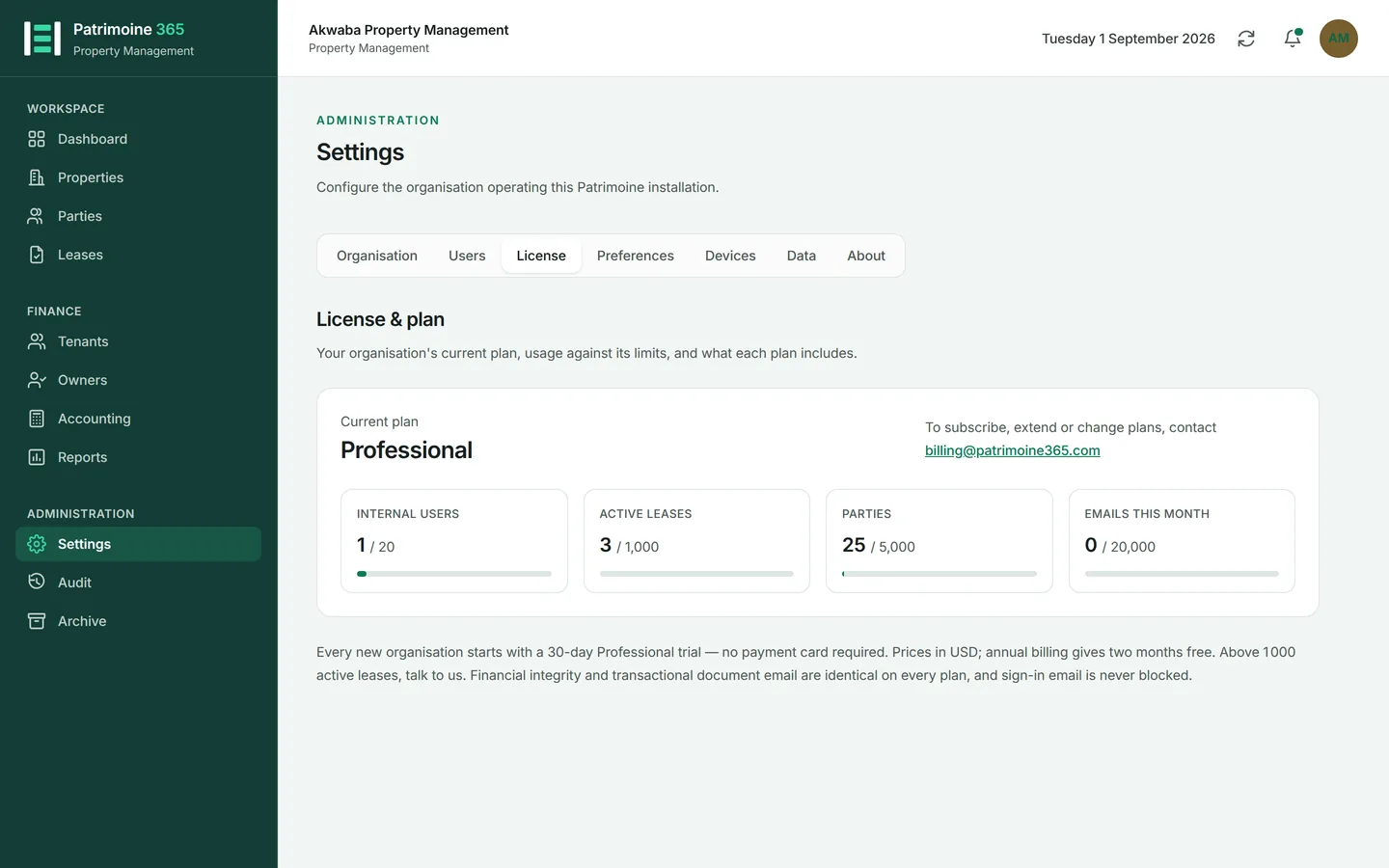
The Licence tab shows the plan you are on, what it includes, and how much of it you are using.
1
Open Settings and choose the Licence tab.
2
The current plan is shown with your usage against each of its limits.
3
The table beneath compares the plans.
4
To subscribe, extend or change plan, contact us — plans are issued rather than bought from this screen.
Back up and restore your registry
Who can do this: Administrators
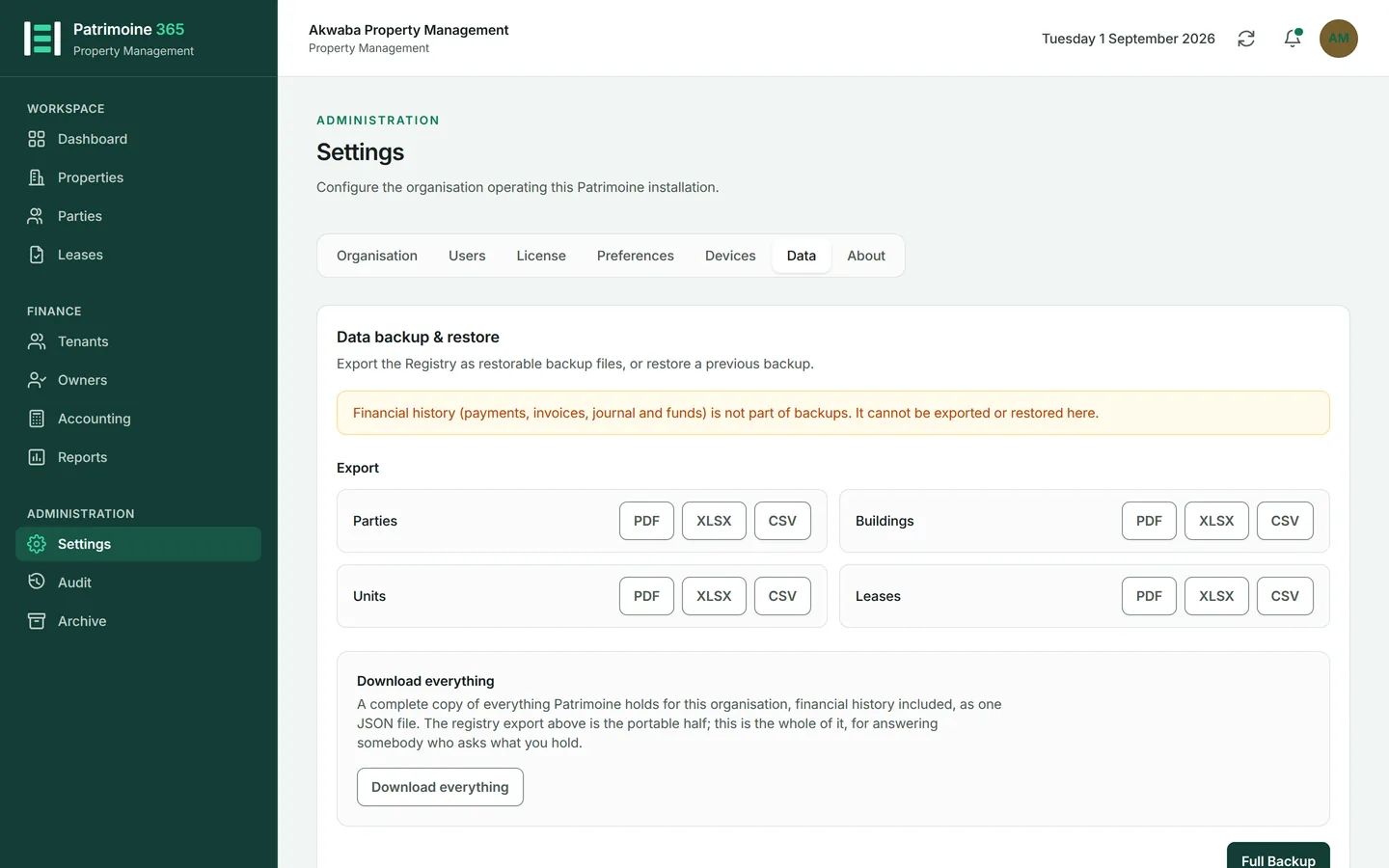
Your registry — parties, buildings and their ownership, units and leases — can be exported whole and put back. Financial history is deliberately not importable: it is immutable, and a way to write it from a file would be a way to rewrite the accounts.
1
Open Settings and choose the Data tab.
2
Press Export to download the registry as a workbook. Do this before any large change.
3
To restore, choose the file and press Review restore. Nothing is written yet.
4
Read the dry run: it says exactly what would be created and what would be matched to records you already have.
5
Press Apply this restore only if the dry run says what you expect. Records are matched rather than duplicated, so restoring twice does not double your registry.
Download your own data
Anybody with an account can take a copy of everything Patrimoine holds about them, without asking anybody. No role is needed and no administrator is involved.
1
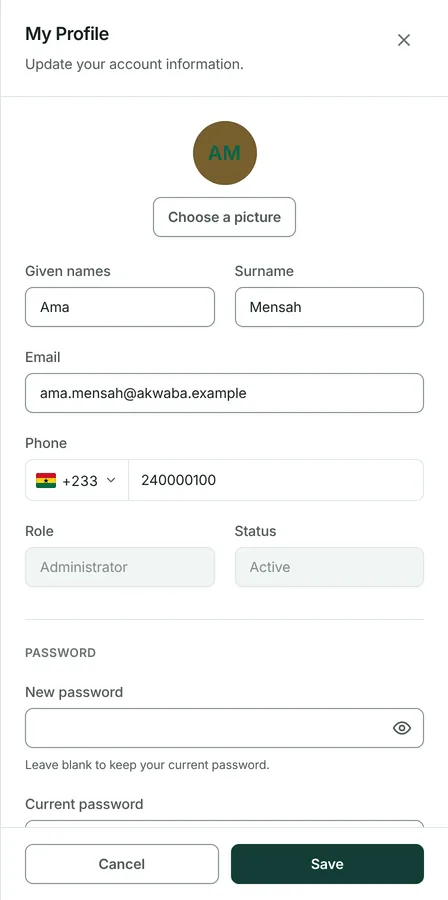
Press your photograph at the top right, then Edit profile.
2
Press Download my data.
3
The file holds your account details, the tokens your account can be used with, and every action you have taken — including the address, browser and device each came from.
4
Your password is never in it. It is stored only as a hash and cannot be turned back into anything.
Download everything the organisation holds
Who can do this: Administrators
A complete copy of the whole organisation, financial history included, as one structured file. Wider than the registry export beside it: that one is the portable registry, this is everything.
1
Open Settings and choose the Data tab.
2
Press Download everything.
3
Password hashes are stripped before the file is written. Everything else is there.
4
Use it to answer somebody who asks what you hold, or to keep a copy of your own outside Patrimoine.
Archive a record you cannot delete
Who can do this: Administrators and Property Managers
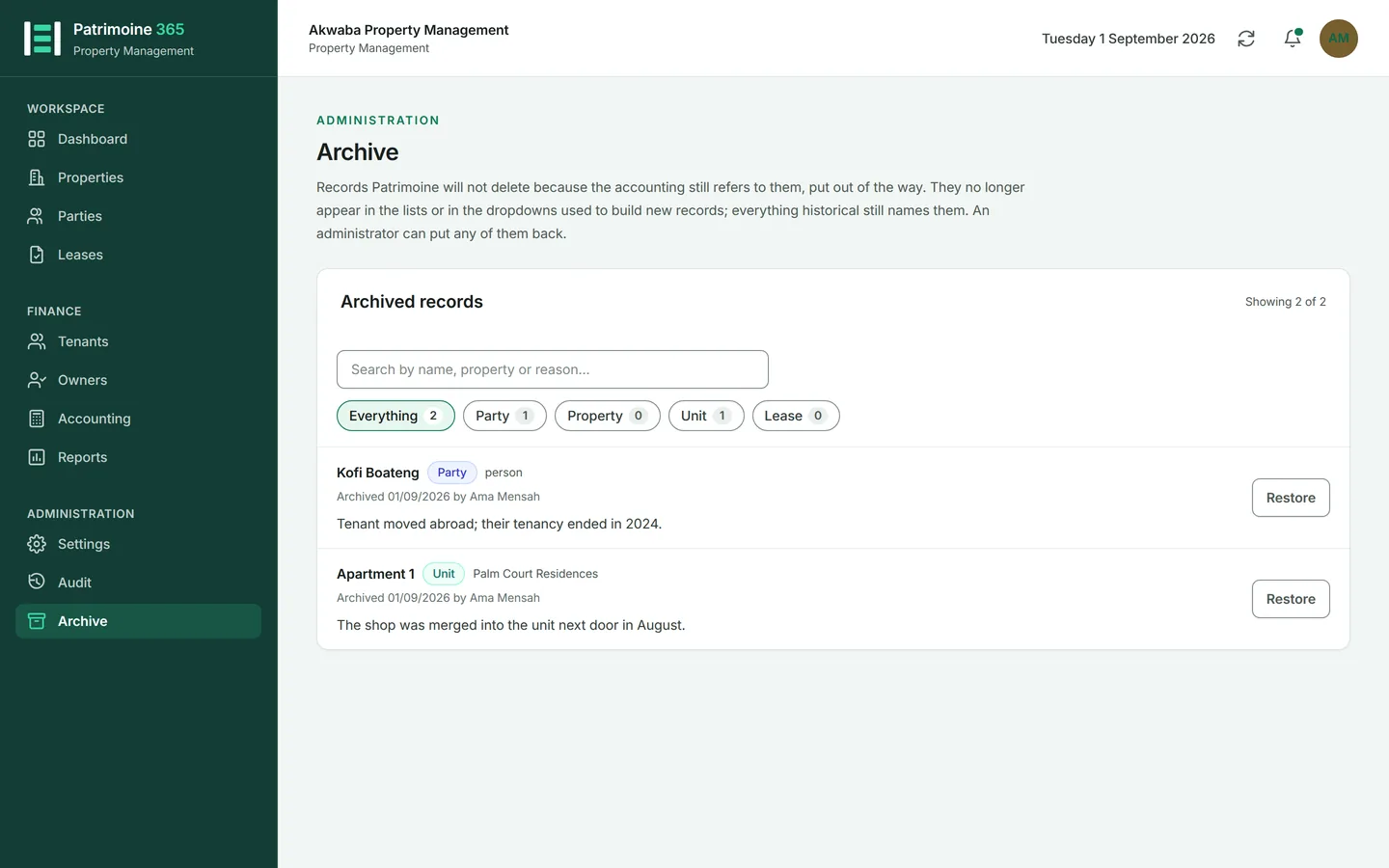
Patrimoine refuses to delete anything the accounting still refers to. Archiving is what it offers instead: the record leaves the lists, and nothing else about it moves. It asks the way deletion asks, because to anybody who did not do it the record has simply gone.
1
Look at the button on the row. It says Delete while the record can still be removed outright, and Archive once it cannot. Both are red, because both take the record off every screen. Parties, properties, units and leases can all be archived.
2
Press Archive. A drawer opens saying exactly what archiving does — the record leaves every list and every dropdown, nothing else changes, and it can be put back — and asks why.
3
Write the reason. It is kept with the record and shown on the Archive page, so the next person to ask why something is missing has the answer in front of them.
4
A lease has to be terminated first. Archiving a letting that is still running would hide a tenancy still being invoiced and still holding a deposit, so Patrimoine refuses it with PM-3097. Terminate the lease, complete its settlement, and Archive is then available on the same row.
5
Nothing else changes. Every invoice, receipt, journal entry and activity-log line still names it, because the record itself has not moved.
6
Open Archive, under Audit, to see everything that has been put away, why, and who put it there. Search across the names and the reasons, or narrow to one kind of record with the chips.
7
Press Restore to put one back. It asks for a reason too — the record returns to every list and every dropdown at once — and that reason goes to the activity log, because a restored record is not archived for any reason at all.
Close the account
Who can do this: Administrators
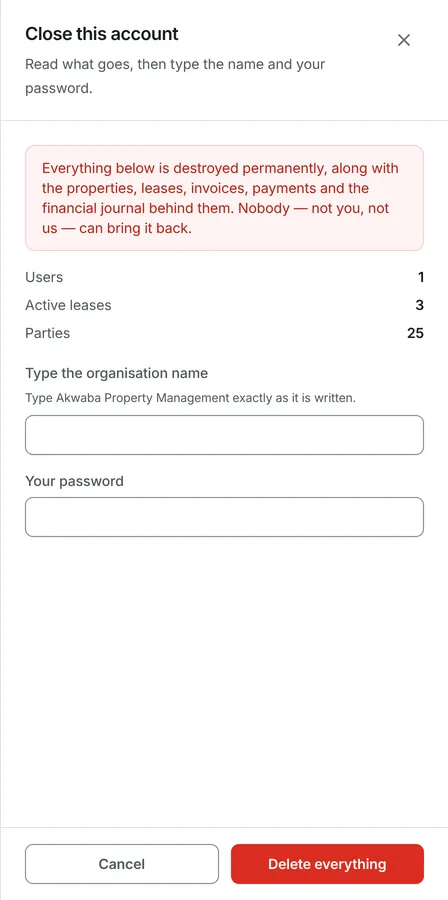
Permanently deleting the organisation and everything in it. It cannot be undone, by you or by us: there is no recycle bin and no copy kept.
1
Open Settings, stay on the Organisation tab, and go to the foot of the page.
2
Press Close account. The panel counts what will go: the people, the leases, the parties.
3
Type the organisation name back, exactly as it is shown.
4
Enter your own password.
5
Press Delete everything. The properties, leases, invoices, payments and the financial journal all go with it, and you are signed out.
Then: If what you want is to stop paying, or to put Patrimoine aside for a while, write to support instead — that is a conversation, and this is not.