Creating a letting, changing it while it runs, and ending it properly.
See a whole letting at once
Who can do this: Everyone
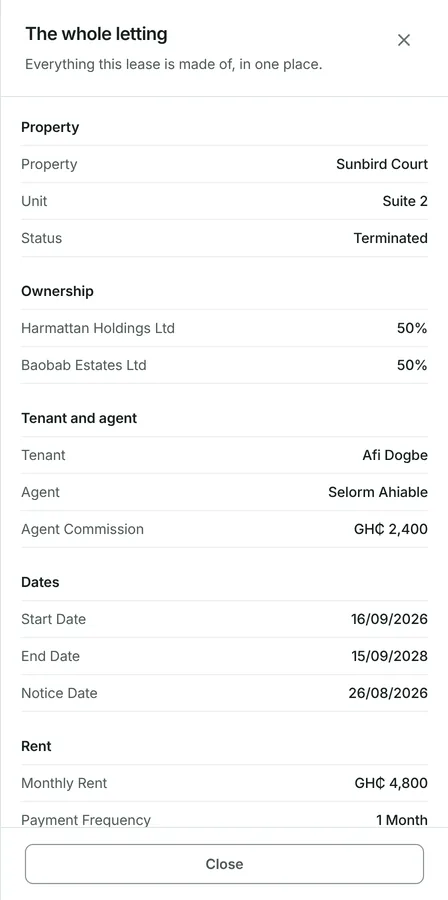
A letting is entered across several pages and then lives in several places. View reads it all back on one screen.
1
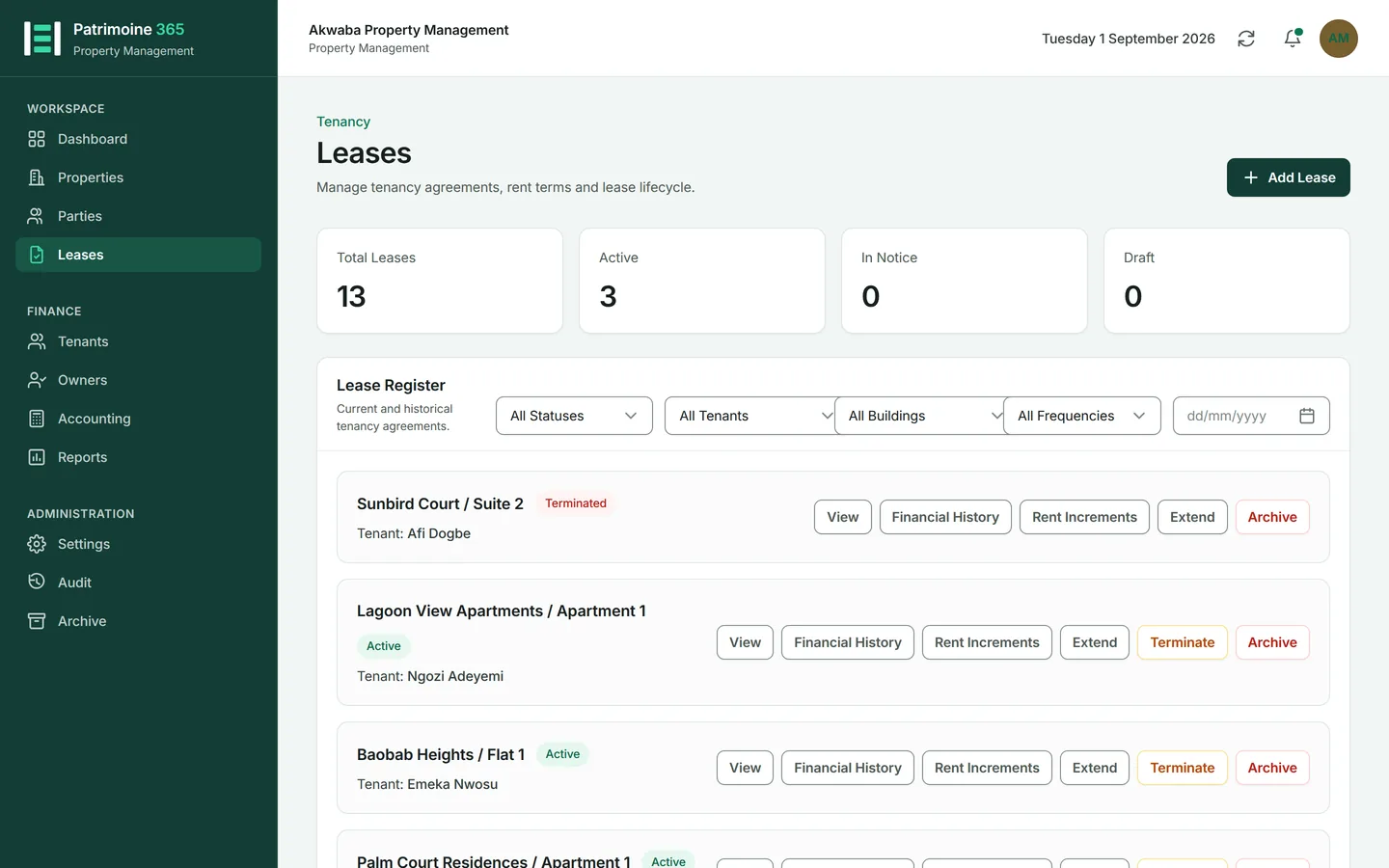
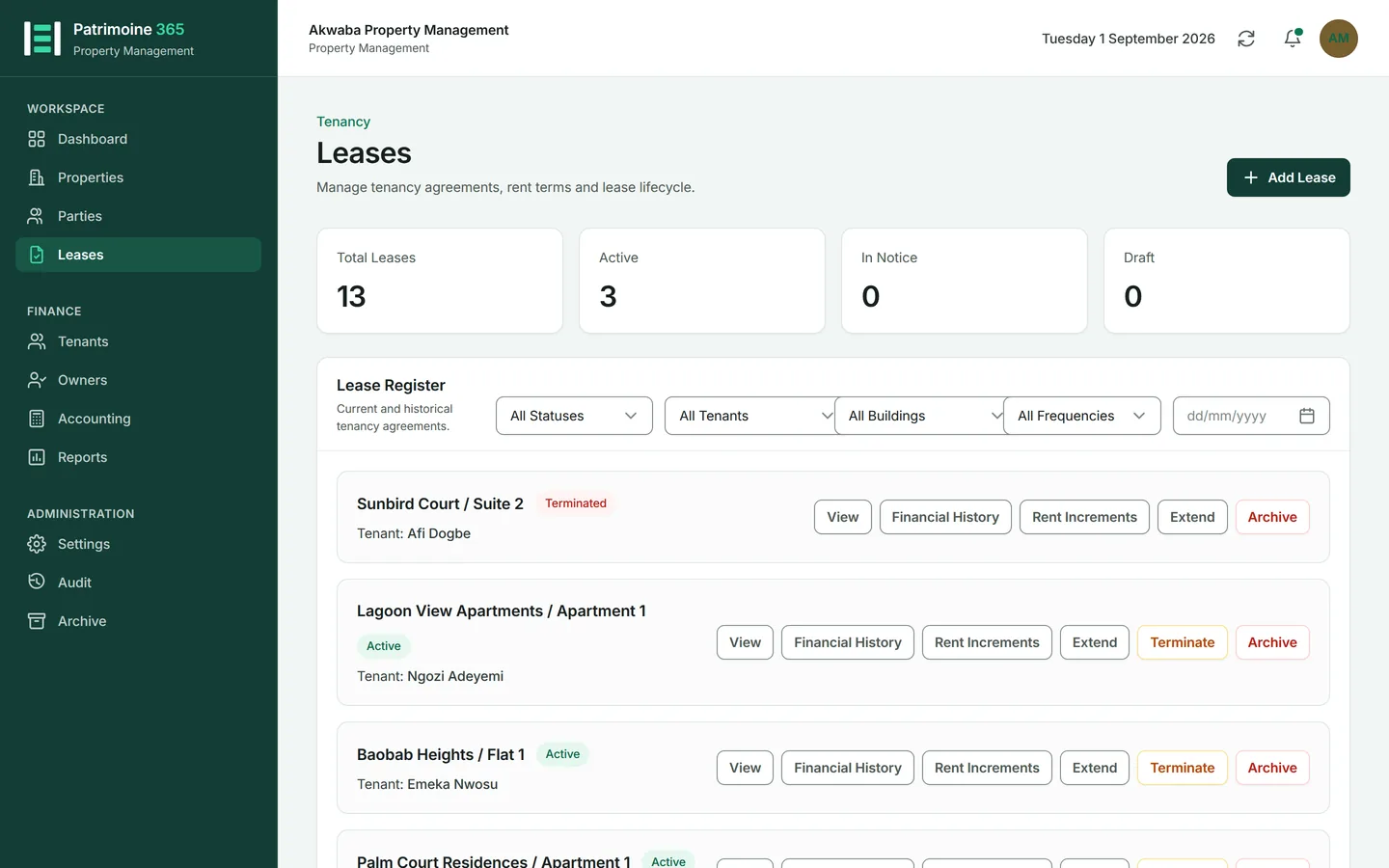
Open Leases and press View on the lease you want.
2
The panel holds the property and unit, who owns it and in what shares, the tenant, the agent and their commission, the dates, the rent terms, what is held, the increases and the fee.
3
It is read-only. Each of these values is changed where it belongs — Edit for the terms, Rent increments for the increases — so there is only ever one place a figure can be altered.
Create a lease with the guided assistant
Who can do this: Administrators and Property Managers
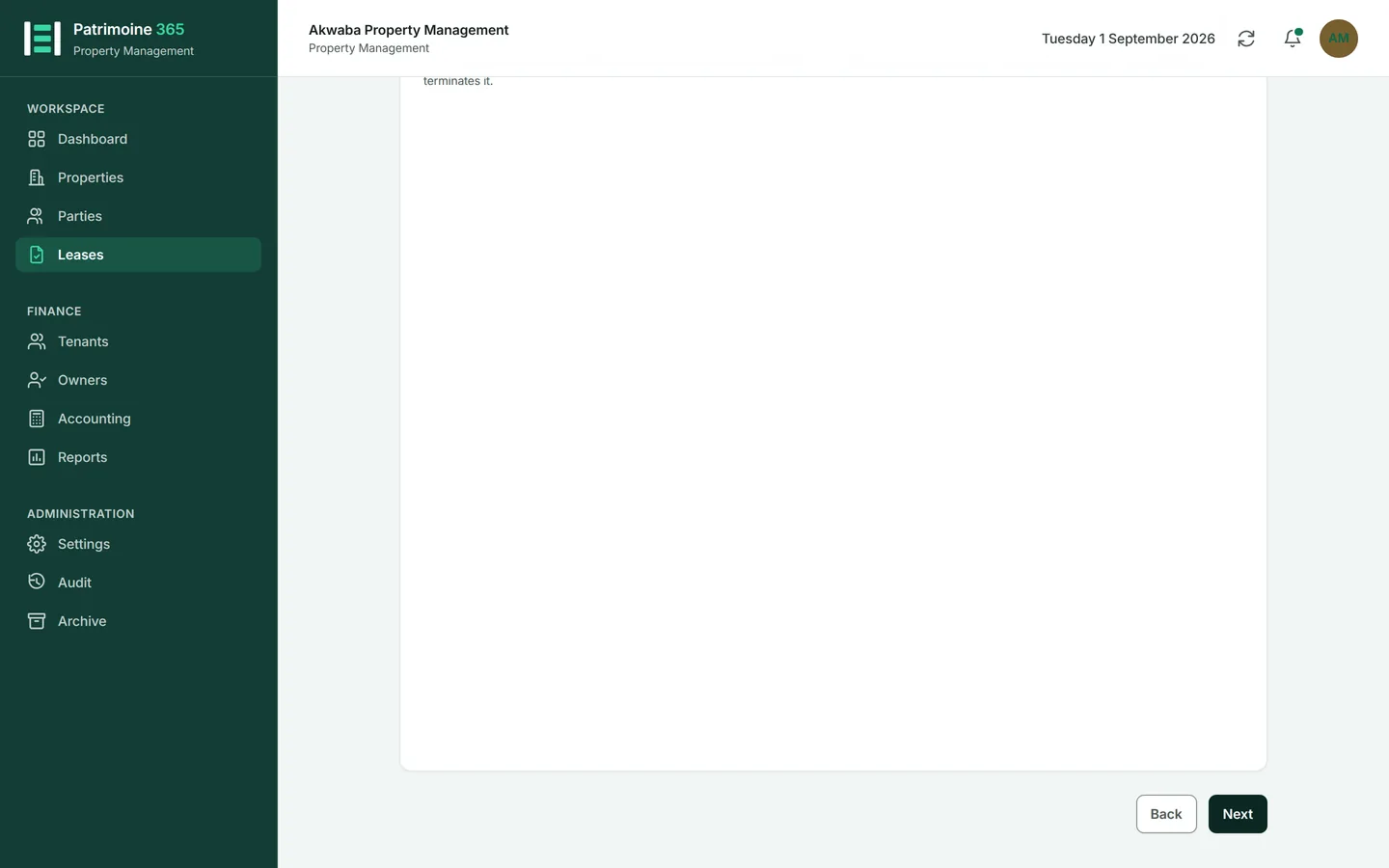
The assistant builds a whole letting in one sitting — the property, the unit, the owner, the tenant and the lease itself — asking one thing at a time. It asks for exactly what the Add lease drawer asks for, one section per page, so a lease made here and a lease made there are the same lease.
1
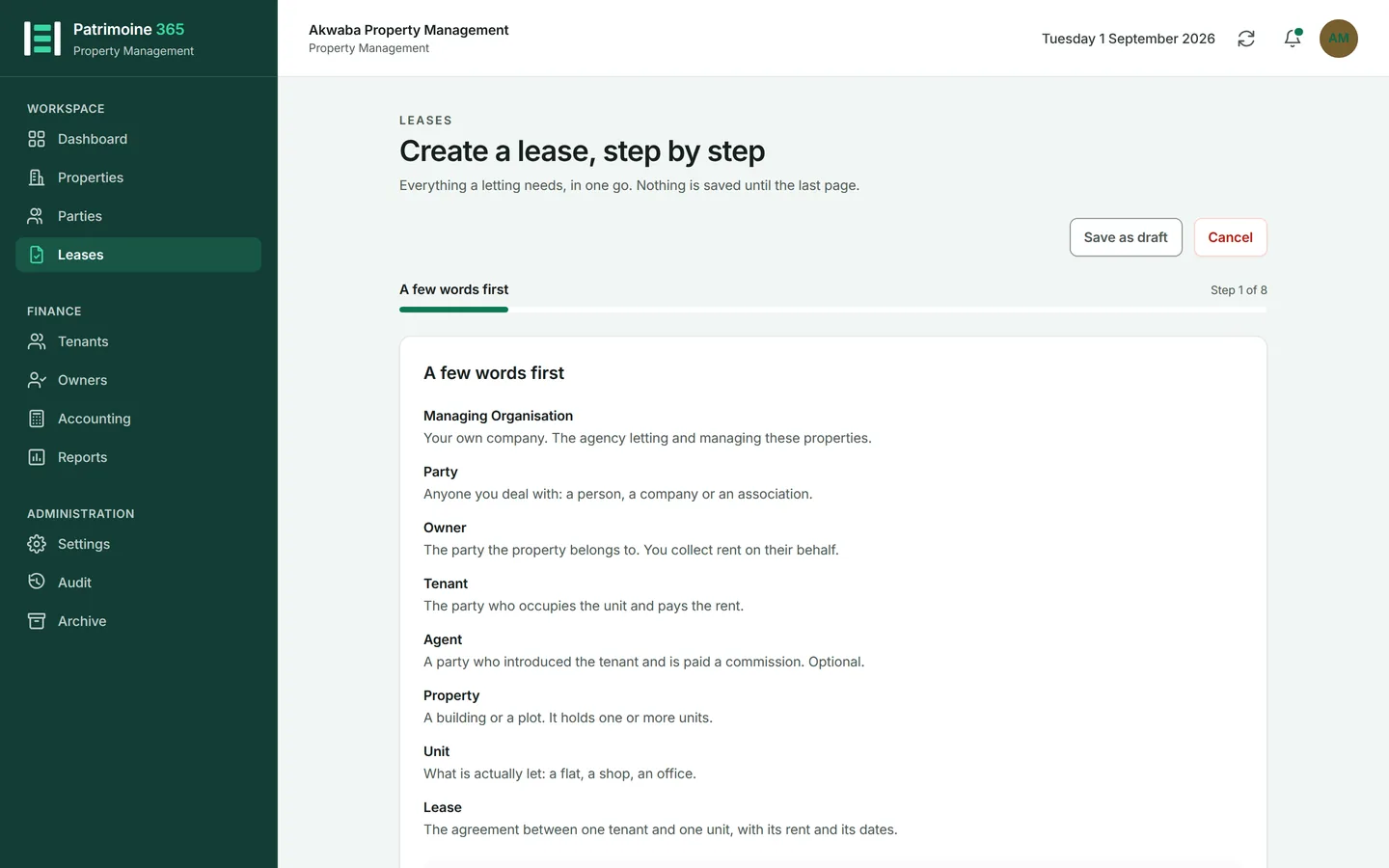
Open Leases and press Add lease. The assistant is how a letting is created — there is no second, shorter form to choose between.
2
The first page explains the words the assistant uses — party, owner, unit — so nothing later has to be guessed at. Read it once and press Next.
3
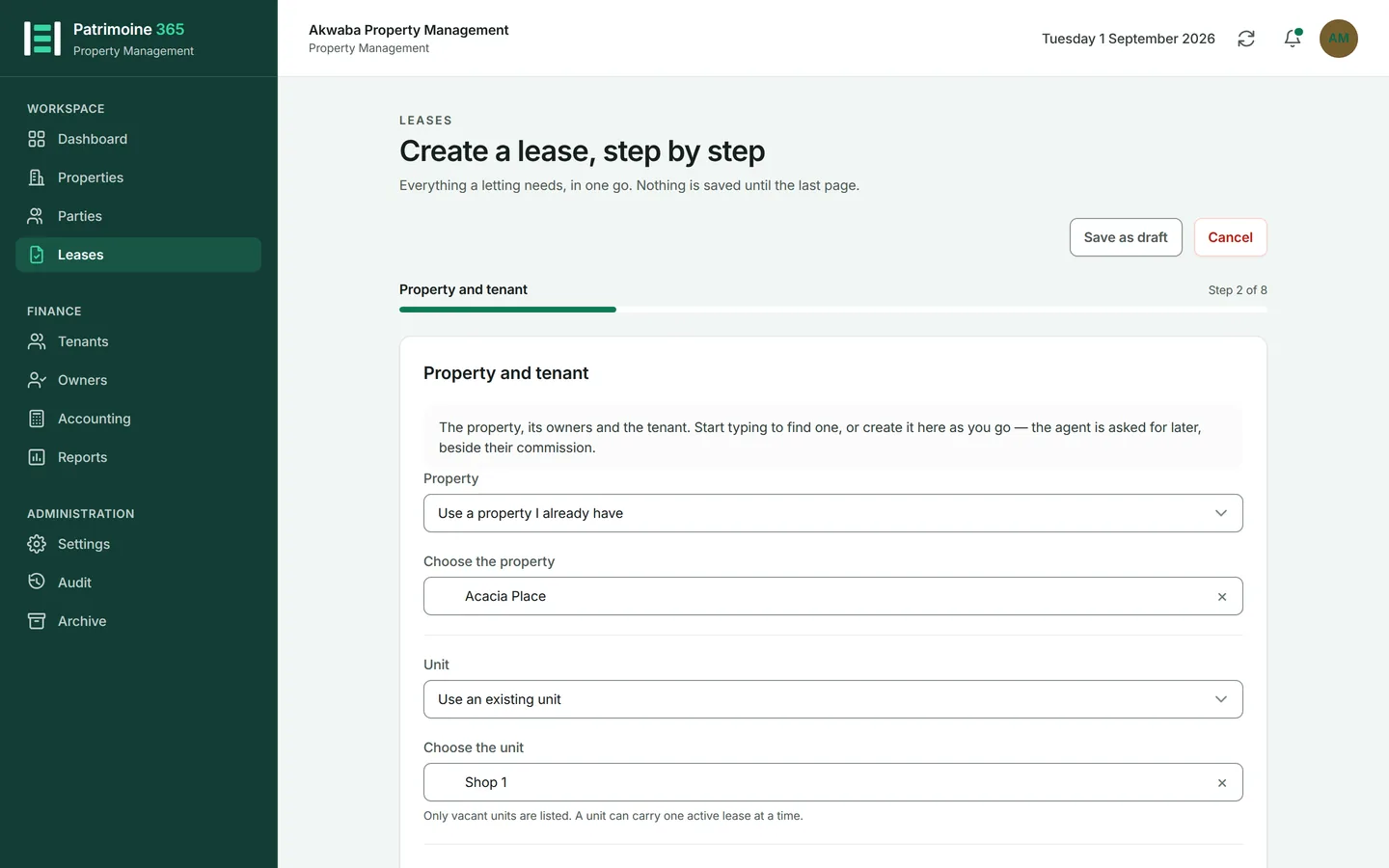
Property and tenant. Start typing to find the property and the unit being let, or create either; record who owns it and their shares, if Patrimoine does not know yet; then find the tenant the same way. Anything not recorded yet can be created here as you go, and a new person can be told straight away whether Patrimoine may email them.
4
Lease period. Set the start date and either a duration or an end date, and the notice date if the letting has one. The start date is the anniversary for the whole letting: a lease beginning on the 31st is billed on the 31st of every month that has one, and on the last day of the months that do not.
5
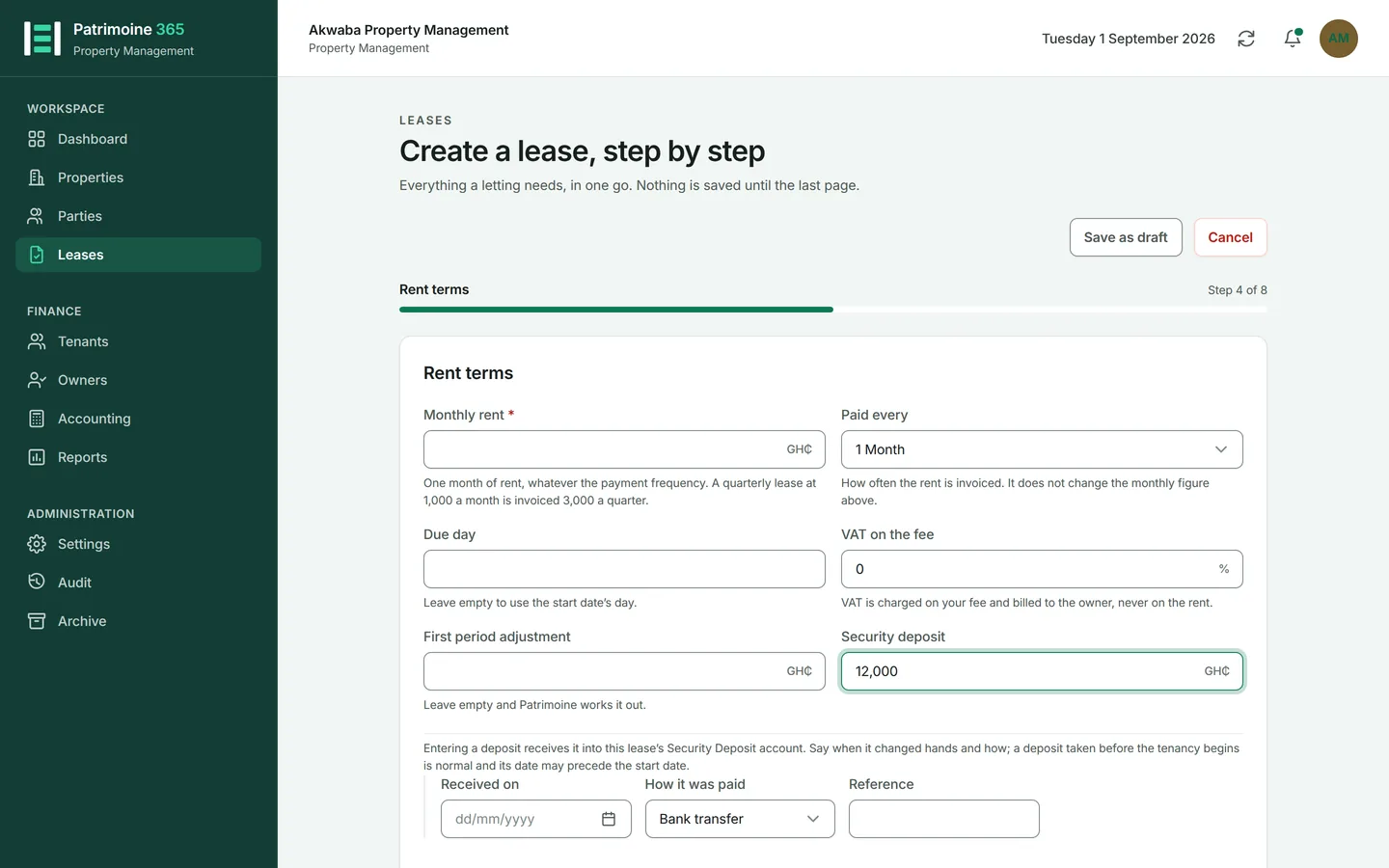
Rent terms. The rent field is a MONTH of rent, whatever the payment frequency — a lease paid every 3 Months at 1,000 a month is invoiced 3,000 a quarter. Paid every counts months from the start date rather than calendar quarters, which is why it reads 1 Month, 3 Months, 6 Months and 12 Months. Set it, then the due day, the VAT on your fee, any first-period adjustment, and the deposit.
6
Entering a deposit receives it: the money goes into this lease's own Security Deposit account. Say when it changed hands and how. The date may be before the lease starts, because a deposit is usually what secures the unit.
7
Advance payment. Enter the advance and how much of it is held back as a rent reserve; Patrimoine shows you what is left as consumable advance. If the advance has already been received, say when and how it was paid — that date may also precede the lease. When it came in as cash the cashier is whoever is signed in, and Patrimoine fills that in itself.
8
Rent increment. Set a scheduled increase, if there is one. Its date cannot fall before the lease begins.
9
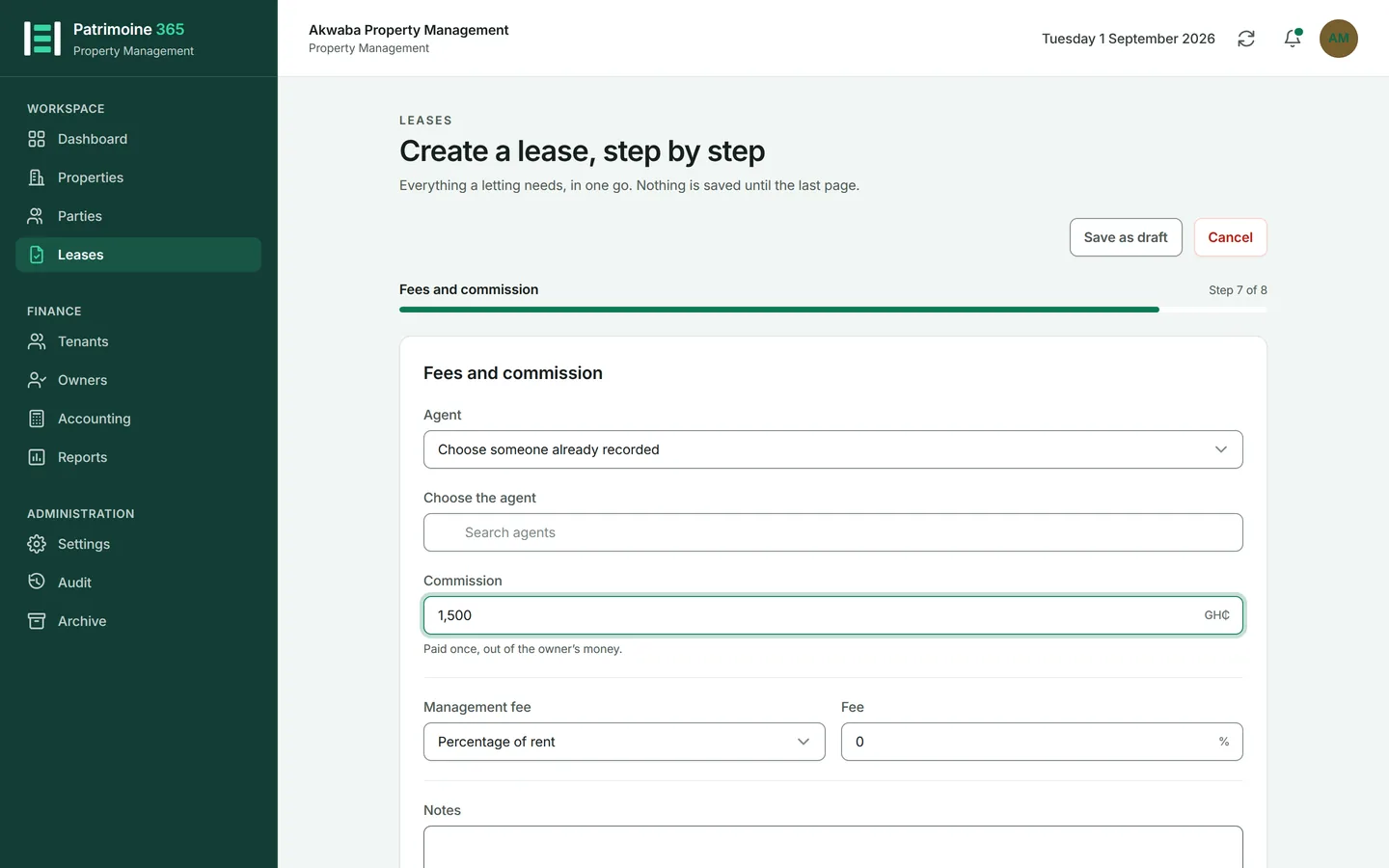
Fees and commission. Choose the agent, if the letting has one, and say what they are owed; the commission field appears the moment an agent is chosen, directly under their name. Then set your management fee and any notes about the letting.
10
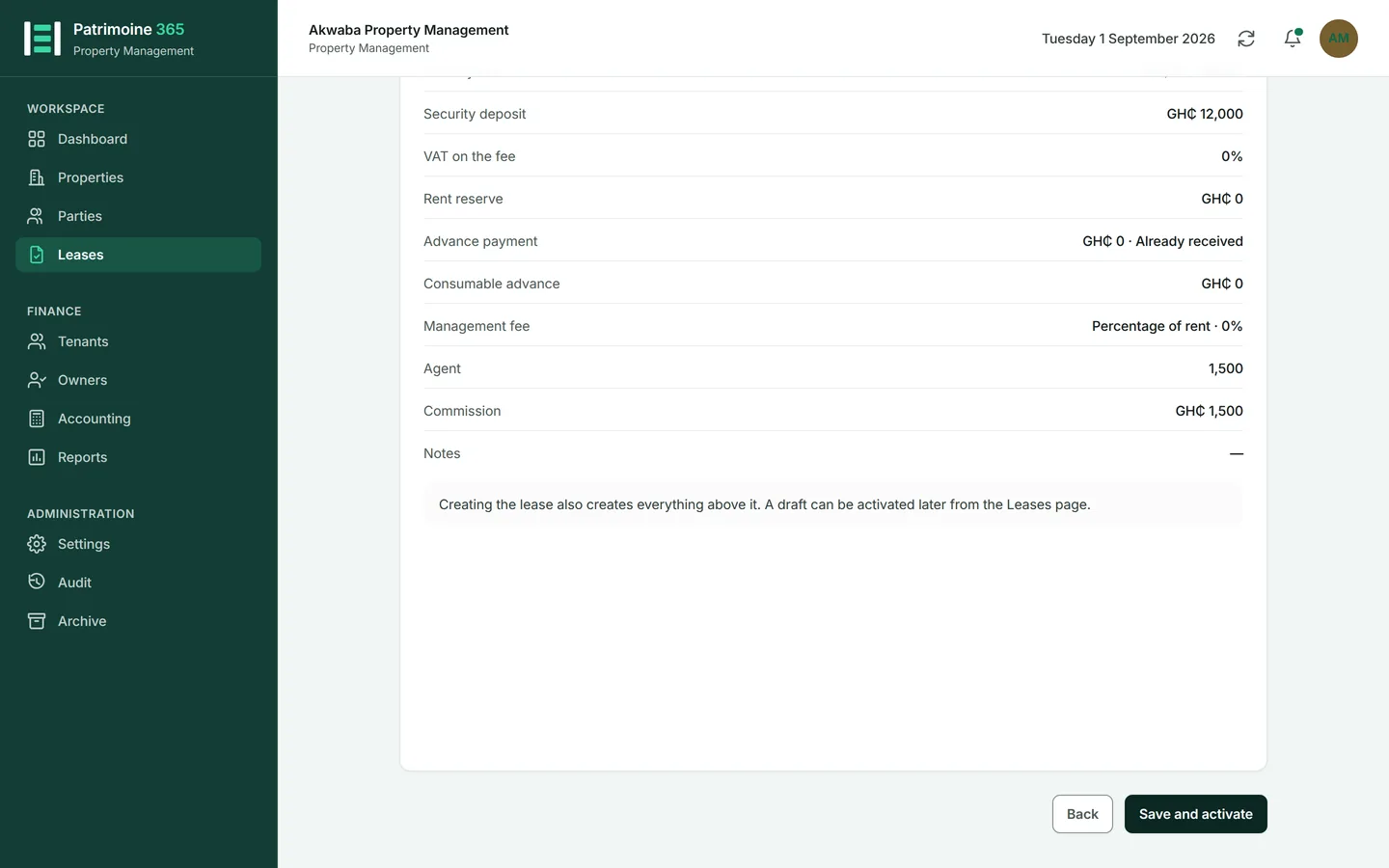
Read the review page. It shows everything that is about to be created, in one list.
11
Press Create and activate. Everything is created together; nothing is saved before this point. Save as draft sits at the top of the page beside Cancel, and is offered on every page including this one.
Then: The lease is live, its deposit is held, and its first invoice follows on the schedule you set.
Leave the assistant half-finished and come back
Who can do this: Administrators and Property Managers
Save as draft keeps the assistant exactly as you left it, however little you have filled in. It is not a half-made lease — no record is created until you activate it.
1
Press Save as draft at any point before the review page.
2
The draft appears under Unfinished assistants at the top of the Leases page, named after whoever started it and the day they did.
3
Press Continue. Everything you had typed comes back, and the assistant opens on the first page — press Next to walk to wherever you had got to.
4
Press Discard to throw it away. Discarding an unfinished assistant deletes nothing else — there was never a lease.
Extend a lease
Who can do this: Administrators and Property Managers
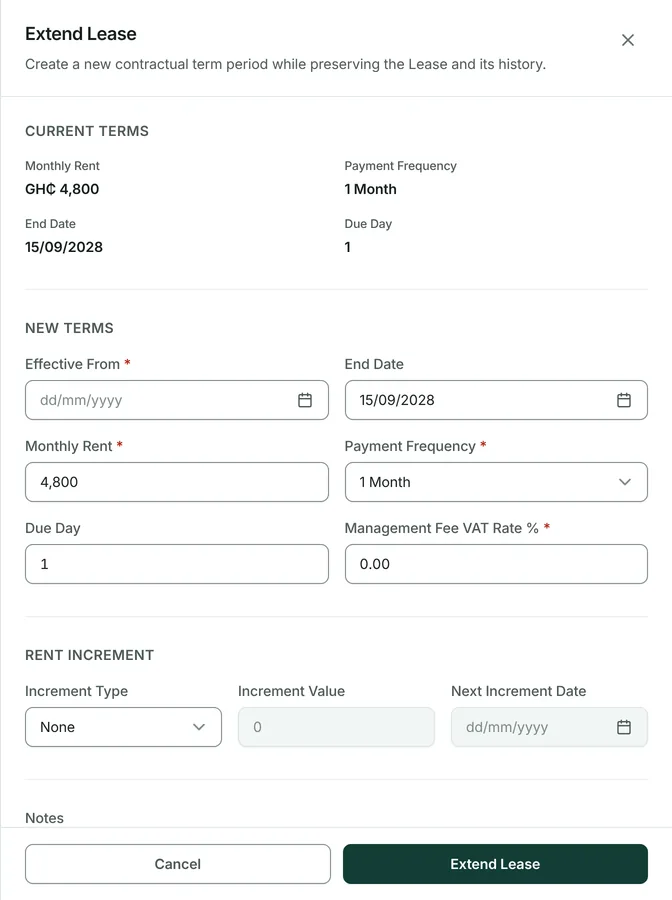
Extending writes a new term against the same lease, so the history of what was agreed and when stays readable.
1
Open the lease and press Extend.
2
Set the new end date, and the new rent if it changes.
3
Press Save. The lease keeps its number and its history; the new term sits alongside the old one.
Schedule a rent increase
Who can do this: Administrators and Property Managers
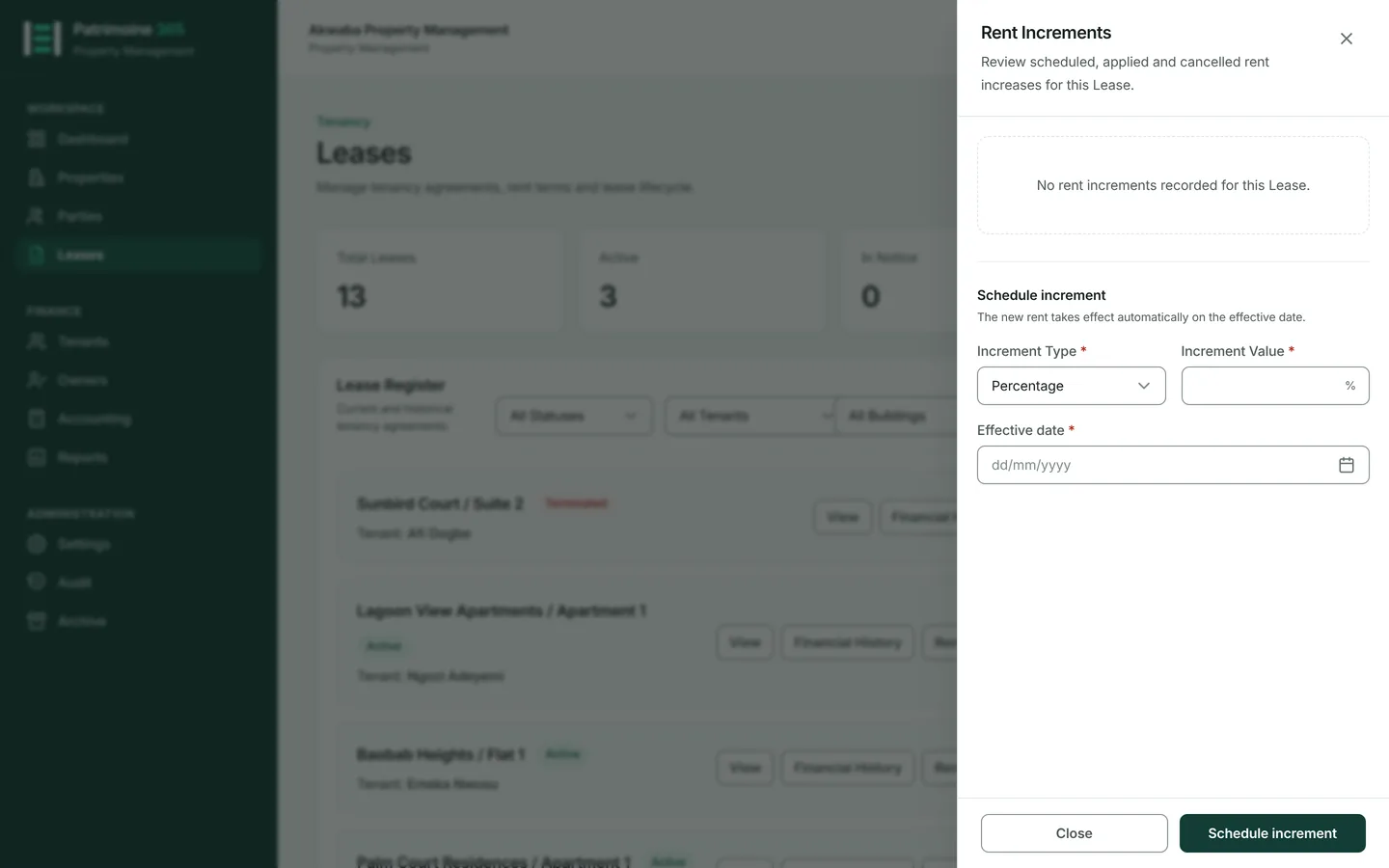
An increment is dated in advance and applied by Patrimoine on the day it falls due, so nobody has to remember to do it.
1
Open the lease and find its rent increments.
2
Enter the new rent and the date it takes effect.
3
Press Save. Nothing changes yet.
4
On the effective date the nightly run applies it, and invoices from then on carry the new rent.
5
A scheduled increment that has not yet applied can be cancelled.
Terminate a lease and settle
Who can do this: Administrators and Property Managers
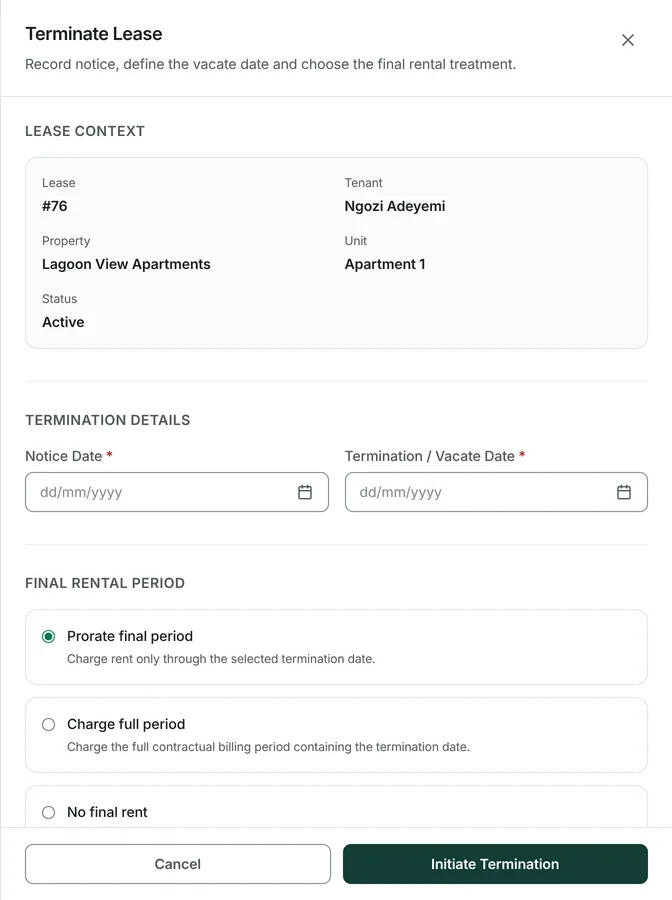
Termination closes the letting and settles the deposit in the same act: what is owed is deducted, and the remainder is returned. It cannot be undone.
1
Open the lease and press Terminate.
2
Set the termination date.
3
Enter any deductions from the deposit, with a reason for each. Unpaid rent and damage are the usual ones.
4
Read the settlement figure. It is the deposit less the deductions, and it is what the tenant is owed back.
5
Confirm. Patrimoine writes the settlement, produces the refund voucher, and closes the lease. Final settlement is irreversible.
See a lease's financial history
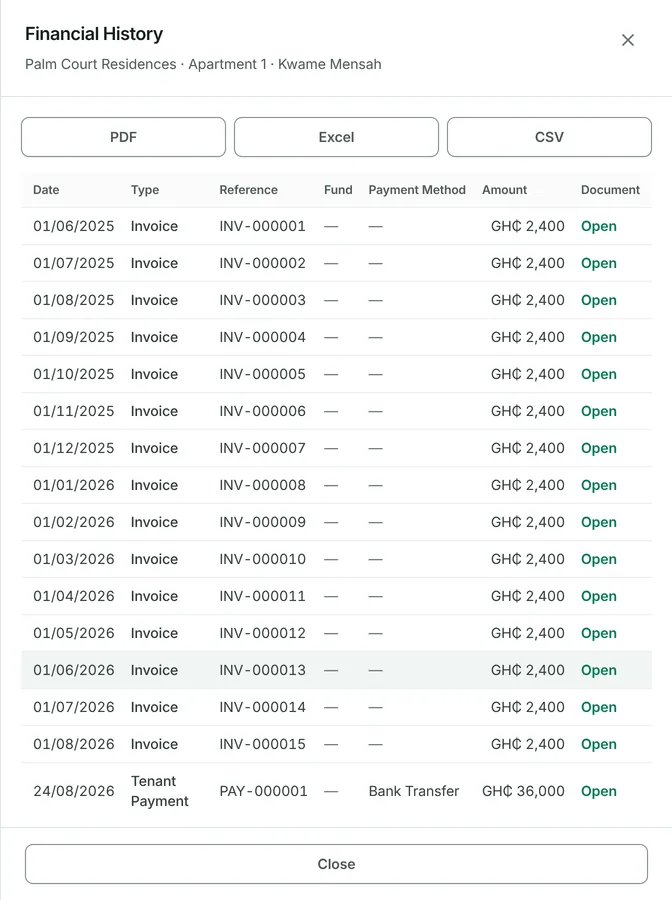
Everything that has ever happened on one letting, in one place: invoices raised, payments received, deposits held, vouchers issued.
1
Open the lease and press Financial history.
2
Every movement is one row: the date, what it was, its reference, the fund it touched, how it was paid and how much. Twenty-five rows a page, or 50 or 100, and every page one press away.
3
Where a movement produced a document, Open in the last column brings it up.
Delete a lease
Who can do this: Administrators and Property Managers
A lease with no money against it can be deleted. One with invoices or payments cannot, and Patrimoine says so before you commit to anything.
1
Open the lease and find the danger zone at the foot of the page.
2
Press Delete. Patrimoine lists exactly what the deletion would take with it. Only a draft lease that has taken no money can be deleted; any other says Archive instead.
3
Confirm if the list is empty. If it is not, the lease stays and the reason is named.