Taking rent, holding deposits, and everything that touches a tenant's balance.
Record a rent payment
Who can do this: Administrators and Property Managers
Recording a payment is the single most common thing anybody does in Patrimoine. It writes the receipt, applies the money to what is owed, and posts the accounting entries in one act.
1
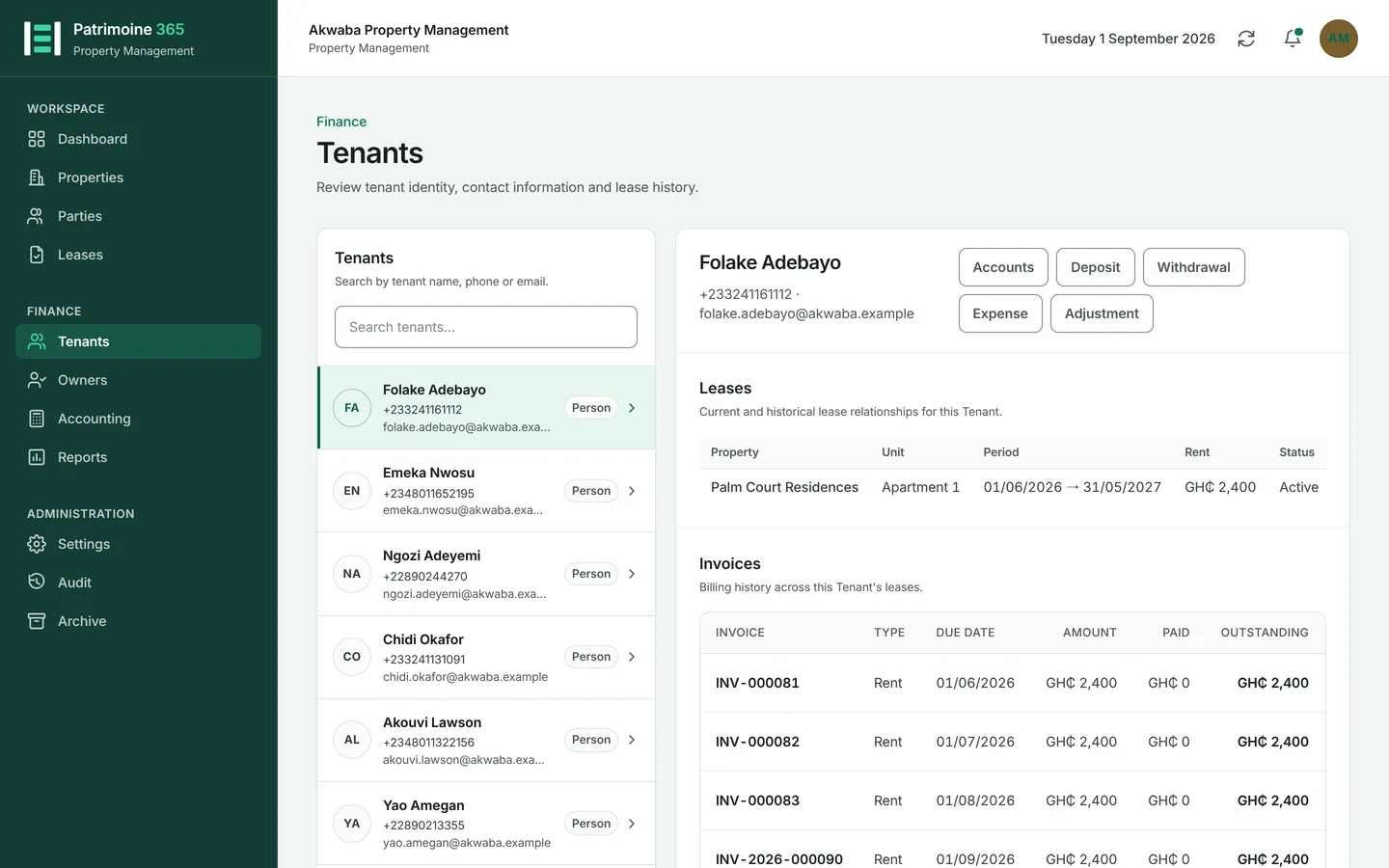
Open Tenants and select the tenant.
2
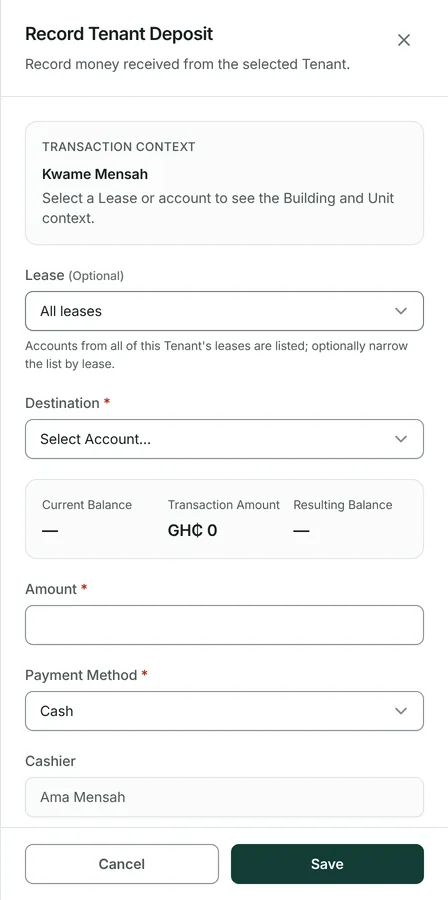
Press Record deposit — this is where money received from a tenant is entered, whatever it is for.
3
Enter the amount, the date it was received, and how it was paid: cash, cheque, bank transfer or mobile money.
4
Name who received it and add the reference, if there is one.
5
Press Save. The receipt is produced immediately and can be emailed to the tenant from the same screen.
Then: The money is applied to open invoices oldest first. See the next task for exactly how.
Understand how a payment is applied
Patrimoine never asks which invoice a payment is for. It applies money to the oldest unpaid invoice first, then the next, and so on — the rule accountants expect and the one that keeps arrears honest.
1
A payment is applied to the oldest open invoice until that invoice is settled.
2
Whatever is left goes to the next oldest, and so on.
3
Anything remaining once every invoice is settled stays on the payment, waiting to be filed into one of the tenant's accounts. It is NOT applied to the next invoice on its own.
4
File it from the payment itself, choosing the rent reserve, the consumable advance or the deposit. Until you do, the money is on no balance and in no account.
5
The bell keeps telling you money has been received and not filed, with the amount, so nothing sits unnoticed.
6
The allocation is shown on the payment itself, so you can always see which invoices one payment answered.
Withdraw from a tenant fund
Who can do this: Administrators and Property Managers
Money held for a tenant — a deposit, or a credit balance — can be paid back out. The withdrawal produces its own numbered receipt.
1
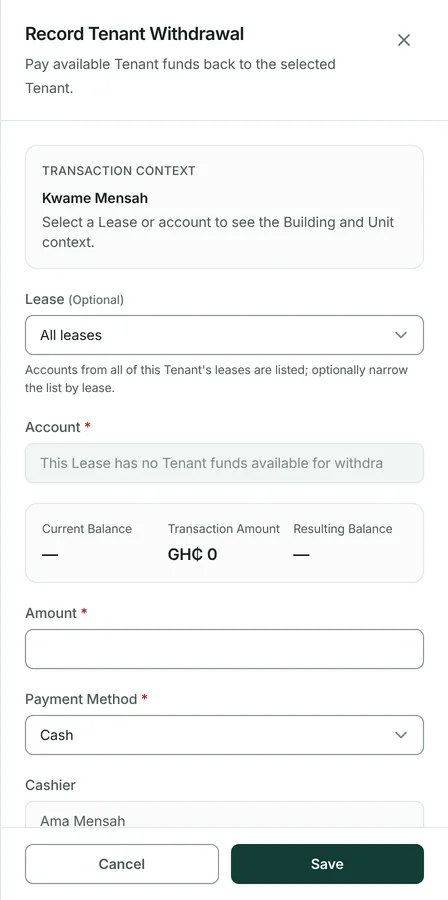
Open Tenants, select the tenant, and press Withdraw.
2
Choose the account the money comes from and enter the amount.
3
Patrimoine will not let you withdraw more than the account holds.
4
Press Save. The withdrawal receipt is produced and can be emailed.
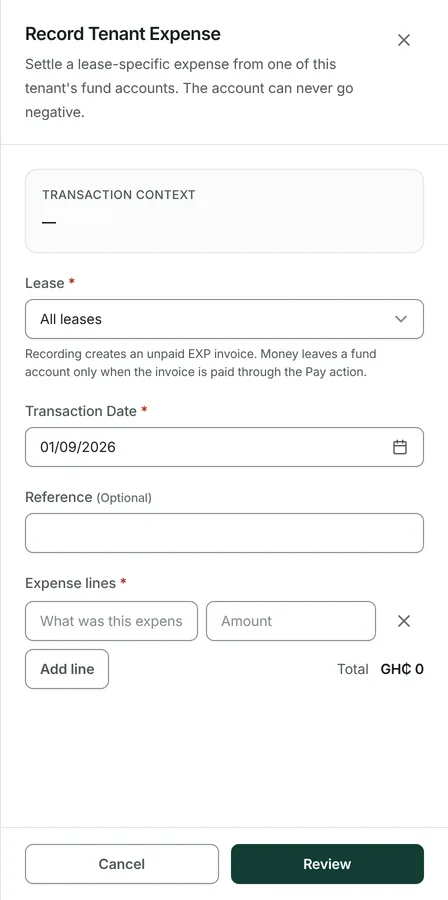
Record a tenant expense
Who can do this: Administrators and Property Managers
Something paid on the tenant's behalf — a repair they are liable for, a utility bill — charged against their account.
1
Open Tenants, select the tenant, and press Record expense.
2
Enter the amount, the date and a description of what it was.
3
Press Save. The expense is charged to the tenant and appears on their statement.
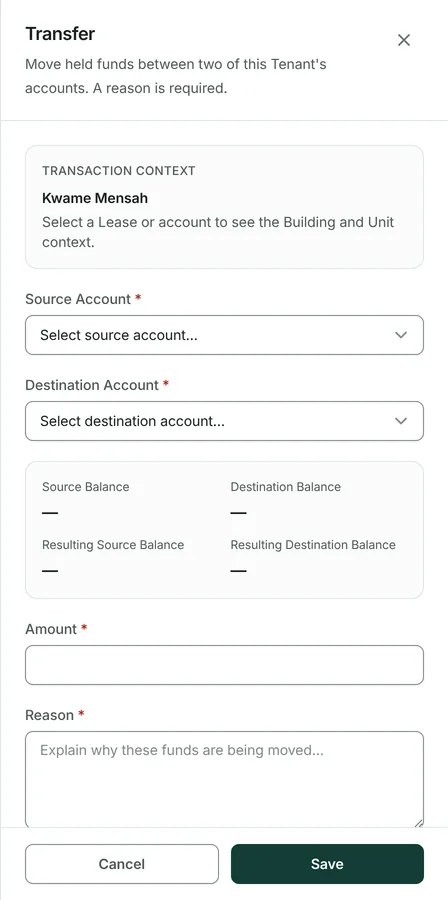
Transfer between tenant accounts
Who can do this: Administrators and Property Managers
Moving money a tenant already holds from one of their accounts to another — a credit balance towards a deposit, for instance. No money enters or leaves.
1
Open Tenants, select the tenant, and press Transfer.
2
Choose the account it comes from and the account it goes to.
3
Enter the amount and the date, and say why.
4
Press Save. A transfer voucher is produced, and it can be emailed like any other document.
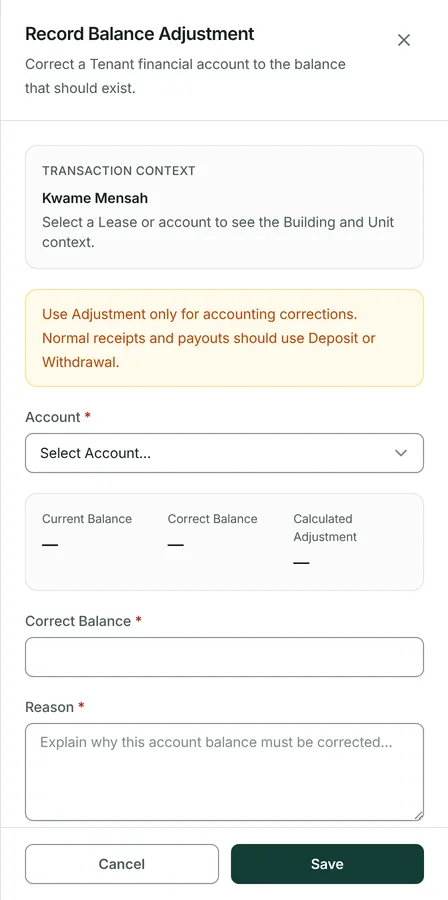
Adjust a tenant balance
Who can do this: Administrators and Property Managers
A correction, and only a correction. Deposits, expenses and withdrawals each have their own action; using an adjustment for one of those hides what really happened.
1
Open Tenants, select the tenant, and press Adjust.
2
Choose the account and enter what the balance should be.
3
Patrimoine shows the current balance, the corrected balance and the difference between them before you save.
4
Explain why the correction is needed. The reason is kept with the entry for good.
5
Press Save.
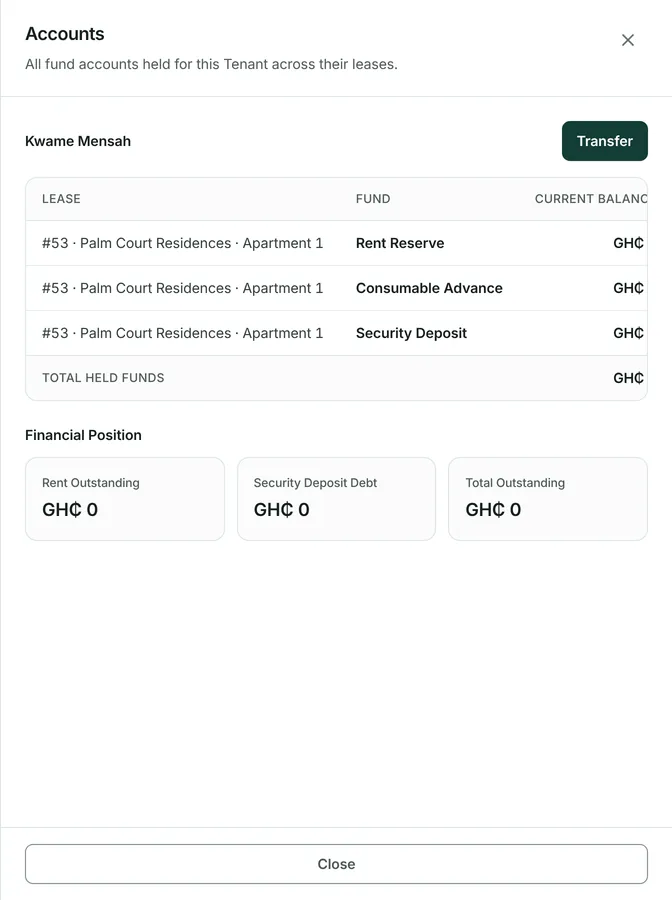
See what a tenant holds and owes
One screen for the whole relationship: every account, its balance, and every movement through it.
1
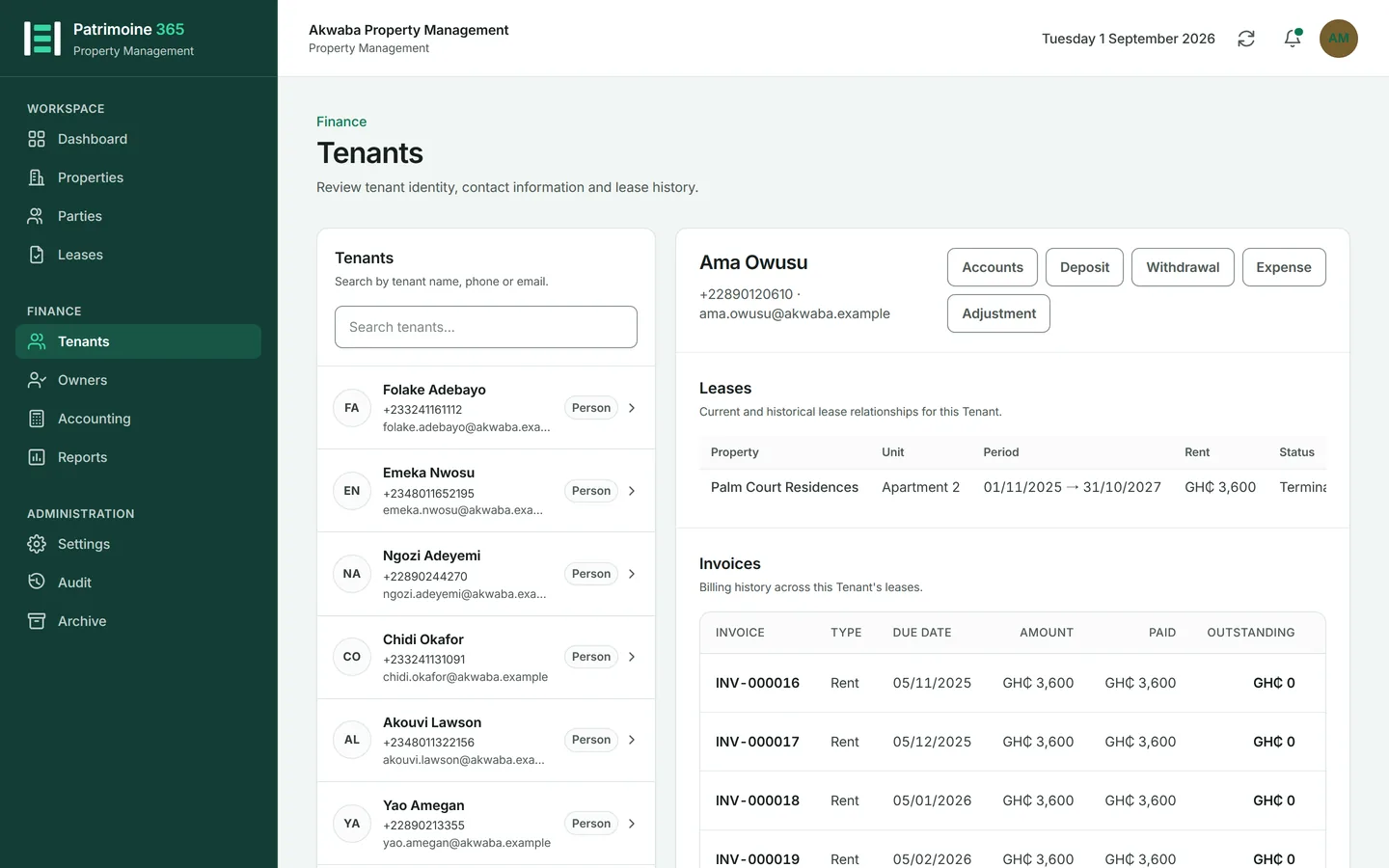
Open Tenants and select the tenant.
2
Press View accounts.
3
Each account shows its balance and its movements, newest first.
4
Press any movement to open the document behind it.