What each owner is entitled to, what they have been charged, and paying them.
See what an owner is entitled to
An owner earns from rent that has actually been collected, not from rent that has been invoiced. The management fee and any agent commission are taken off as the rent arrives.
1
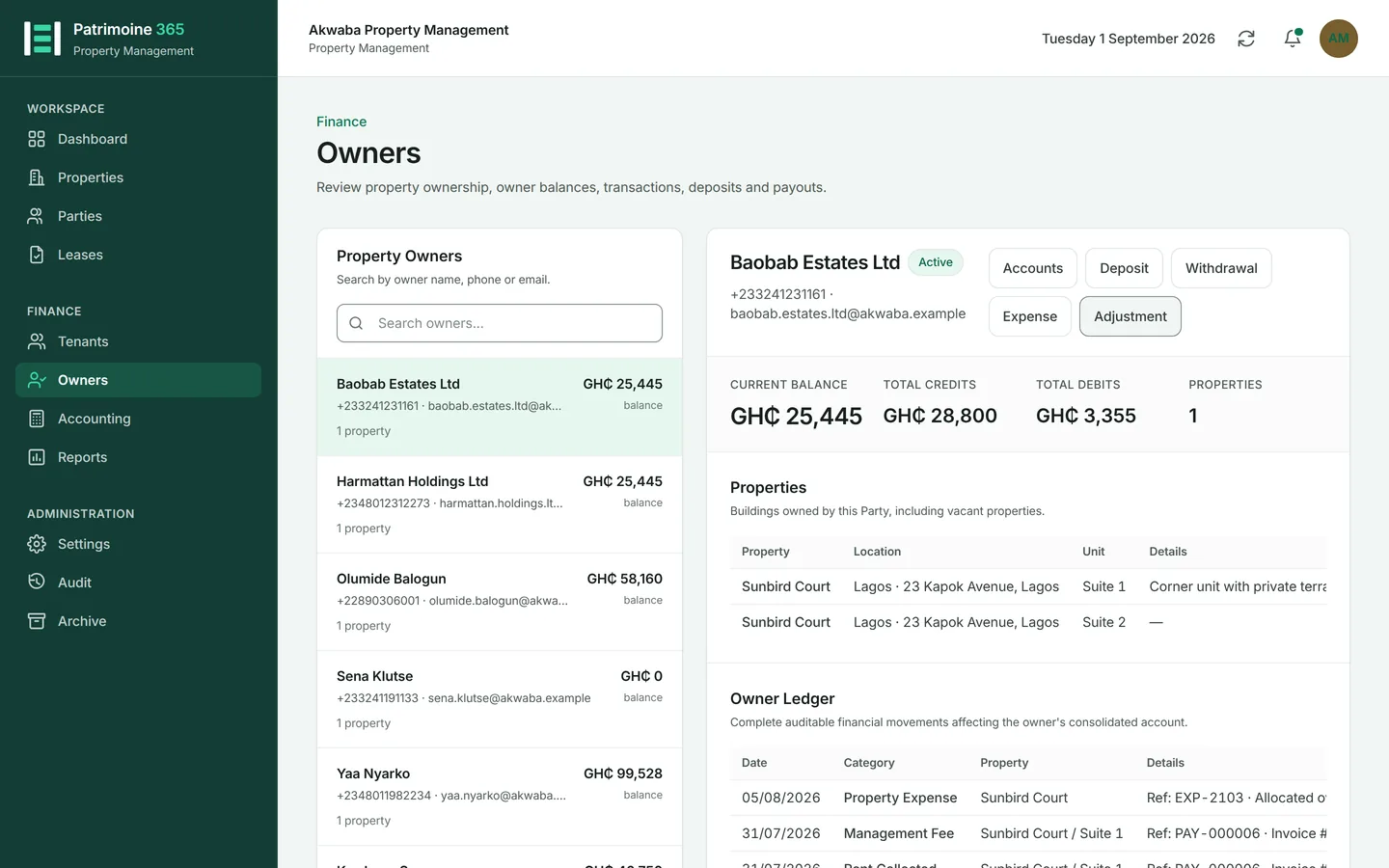
Open Owners and select the owner.
2
The account shows what has been earned, what has been charged, what has already been paid out, and what remains available.
3
An owner with a share of several buildings has one consolidated account, with the properties listed beneath it.
Record money received from an owner
Who can do this: Administrators and Property Managers
An owner sometimes puts money in — to cover a repair, or to clear a negative balance.
1
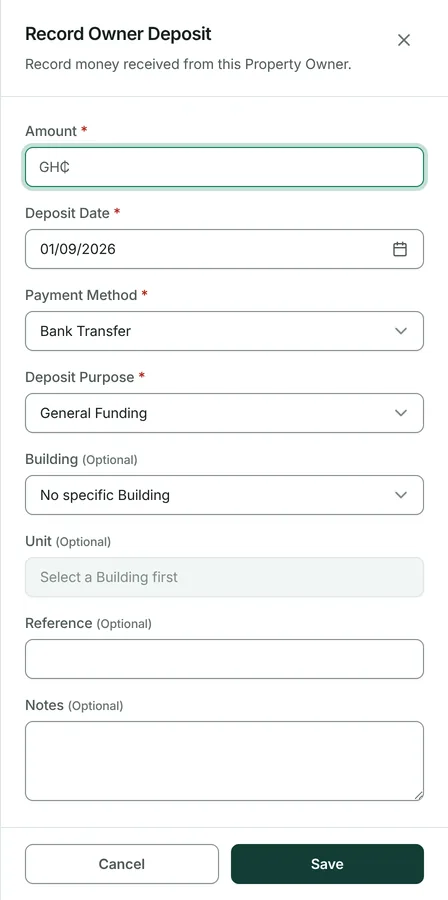
Open Owners, select the owner, and press Record deposit.
2
Enter the amount, the date, how it was paid and what it is for.
3
Press Save.
Record a property expense
Who can do this: Administrators and Property Managers
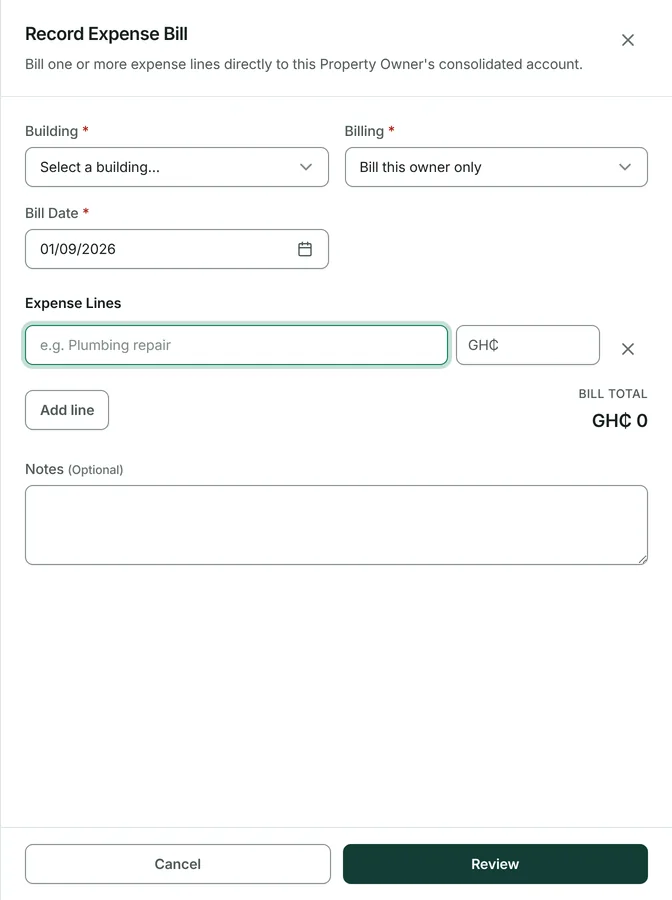
A cost against one of the owner's properties — a repair, maintenance, a service charge. It reduces what the owner is entitled to.
1
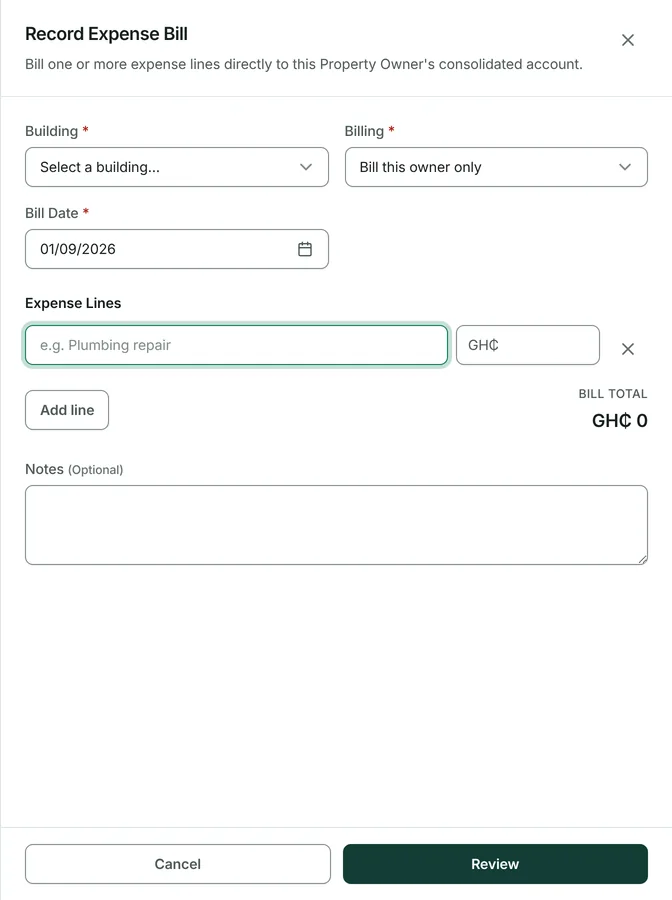
Open Owners, select the owner, and press Record expense.
2
Choose which property the expense belongs to.
3
Enter the amount, the date and a description — "air-conditioner repair" rather than "repair".
4
Press Save. Where a building has several owners, the cost is shared in proportion to their shares.
Pay an owner
Who can do this: Administrators and Property Managers
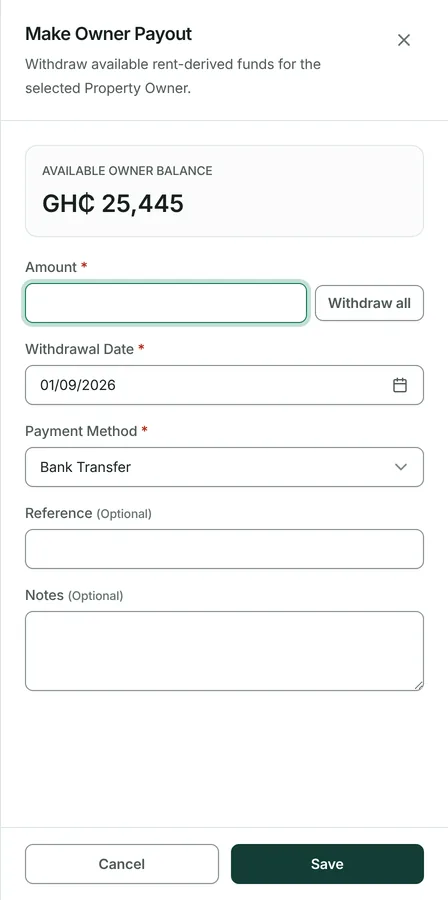
Paying out what an owner has earned. Patrimoine will not let you pay out more than is actually available.
1
Open Owners, select the owner, and press Make payout.
2
The available balance is shown. Enter the amount and the date, or press Withdraw all to fill the field with everything owed.
3
Choose how it was paid and name who authorised it.
4
Press Save. The payout is matched against the earnings it settles, oldest first, and a numbered receipt is produced.
5
The receipt shows the owner how the figure was reached. A summary sits under the amount, and under that every movement since they last collected, itemised: the rent by unit and the period it was for, the fee and the VAT on it, and each expense with its building and date. The three tables add up to the payout, so they can check it without asking you for a statement.
6
The receipt is a record of that moment and does not change afterwards. Money entered later belongs to the next payout even if it carries an earlier date — a rent payment for May, recorded in September, is on the September receipt. That is why a receipt and an owner statement covering what looks like the same period can differ: the statement answers what happened between two dates, the receipt answers what justified one payment.
Adjust an owner account
Who can do this: Administrators and Property Managers
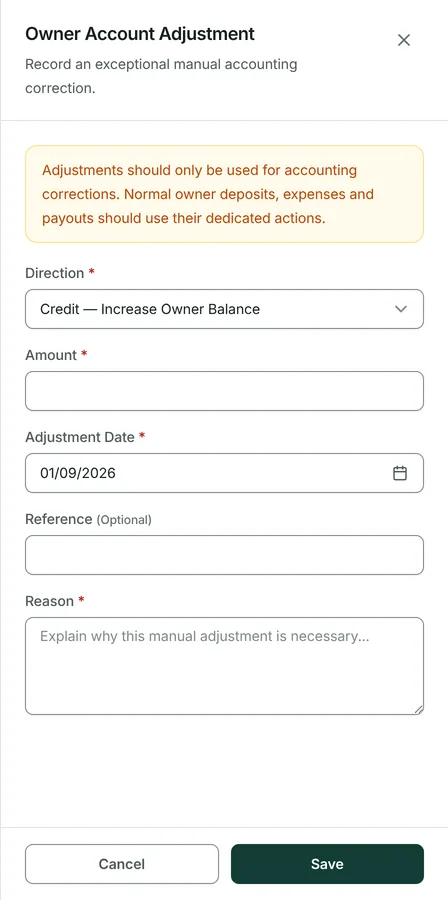
For accounting corrections only. Deposits, expenses and payouts each have their own action.
1
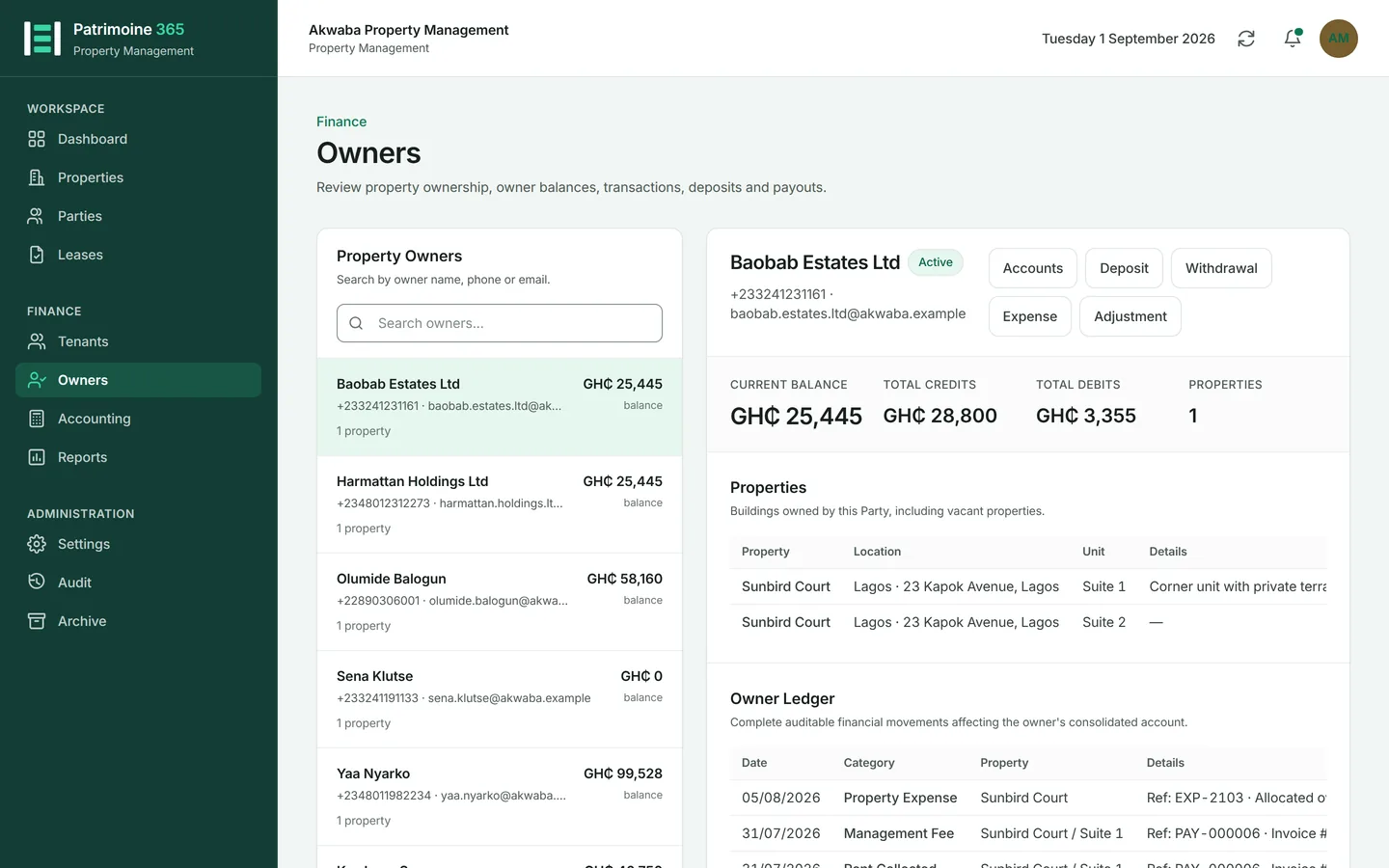
Open Owners, select the owner, and press Adjust.
2
Choose the direction: a credit increases the owner's balance, a debit reduces it.
3
Enter the amount and the date, and explain why the correction is needed.
4
Press Save.
Produce an owner statement
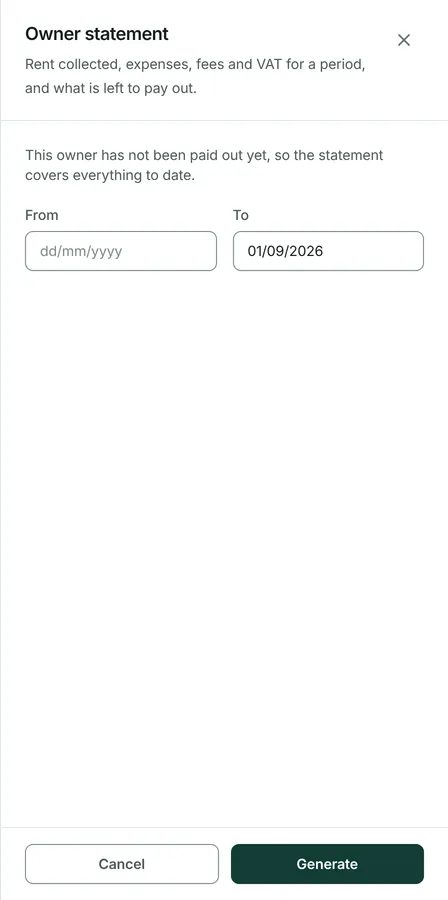
The document an owner actually wants: what their properties earned, what was spent, what was deducted and what they were paid, over a period they can check.
1
Open Owners and select the owner.
2
Press Statement and choose the period.
3
Produce it as a PDF to send, or as XLSX or CSV to work with.
4
It can be emailed to the owner directly, provided their record allows emails.
Bill an owner and take the payment
Who can do this: Administrators and Property Managers
Where an owner is to be invoiced for something rather than have it deducted — a management fee billed separately, say — Patrimoine raises a numbered bill and tracks whether it has been paid.
1
Open Owners, select the owner, and find their expense bills.
2
Raise the bill with its amount, date and description.
3
When it is paid, press Pay on the bill and record how.
4
A payment recorded in error can be cancelled from the same place, which reopens the bill.