Everybody Patrimoine deals with: tenants, owners, agents and your own organisation.
Add a party
Who can do this: Administrators and Property Managers
A party is a person or a company. One party record carries every role that person plays, so somebody who rents one flat and owns another is one party, not two.
1
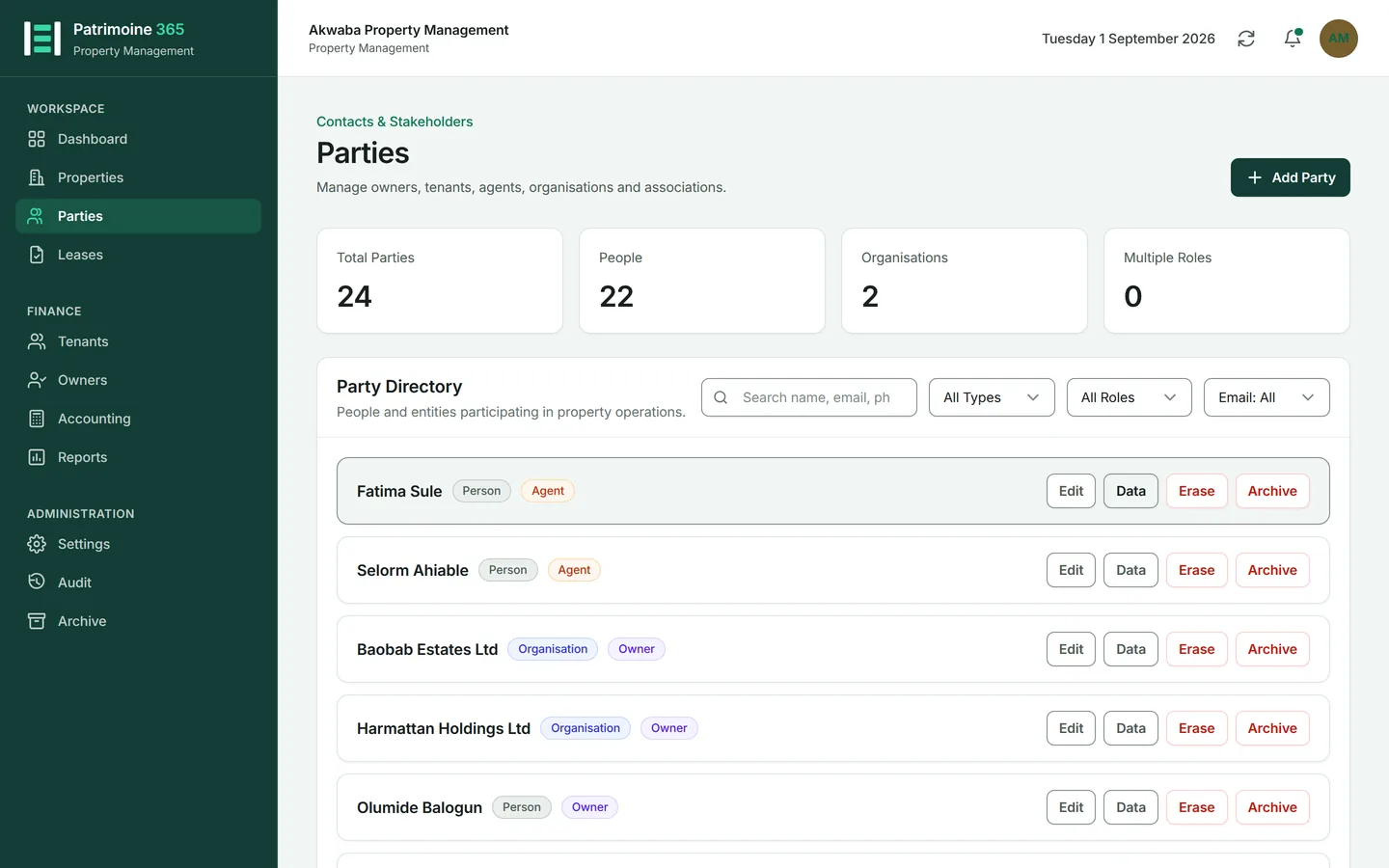
Open Parties from the sidebar and press Add Party.
2
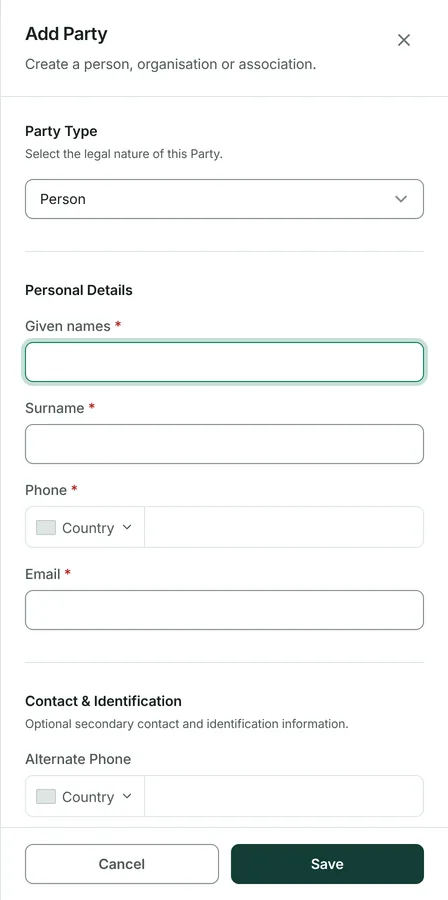
Choose Person or Company. A company also has a contact person, with their own telephone number.
3
Enter the name, email address and telephone number. Choose the country beside the number — a number cannot be dialled without knowing which country it belongs to.
4
Tick every role this party plays: owner, tenant, agent, or your managing organisation.
5
Press Save.
Give a party more than one role
Who can do this: Administrators and Property Managers
Roles are not exclusive. The same record can be an owner of one building and the tenant of another, and Patrimoine keeps the two sides of their account entirely separate.
1
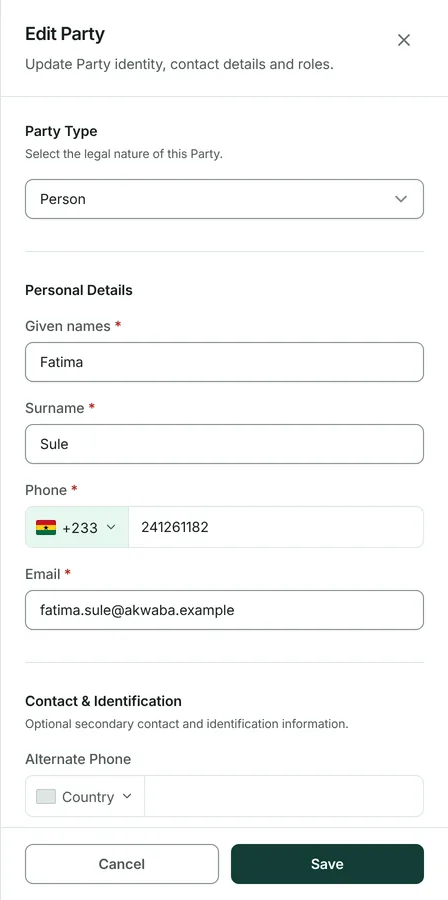
Press Edit on the party.
2
Tick the additional role and press Save.
3
The party now appears in the list for each of its roles — under Tenants, under Owners, or both.
4
Your own company must keep the managing organisation role. Patrimoine refuses to remove it until another party has been named in its place.
Control what a party is sent
Who can do this: Administrators
Patrimoine sends invoices, receipts, reminders, notices and vouchers to parties. You can switch that off for one party or for all of them.
1
For one party: press Edit and turn off emails on their record. They are then sent nothing, and anybody who tries is told why.
2
For everybody: open Settings, and under Communications turn off Send emails to parties.
3
With it off, an individual party can still be allowed back on from their own record.
4
Emails to Patrimoine users — sign-in codes, invitations, password resets — are never affected by either switch.
Produce everything held about a party
Who can do this: Administrators
A tenant or an owner may ask what you hold about them, and you are the one who has to answer: their data is yours to control, not ours. This produces the whole of it as one file.
1
Open Parties and find the person.
2
Press Data on their row. The file downloads immediately.
3
It holds their record, their roles, their leases, their invoices and payments, what is held for them, and every entry in the activity log about them.
4
The file is JSON, which is the format a request for portable data expects. Send it as it is, or open it in a spreadsheet if the person would rather read a table.
Then: Producing it is itself recorded in the activity log, so you can show when a request was answered.
Erase a person who asks to be forgotten
Who can do this: Administrators
Erasure destroys the person, not the accounts. Everything identifying goes for good; the invoices and journal entries stay and refer to them by a reference instead of a name.
1
Erase is hidden unless an administrator has switched the data-protection tools on in Settings, under Preferences. Do that first.
2
Open Parties, find the person, and press Erase.
3
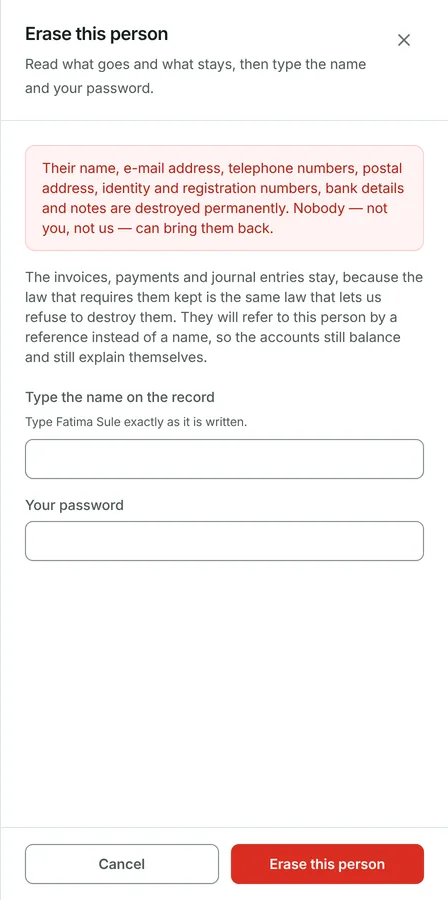
Read what goes: name, email address, telephone numbers, postal address, identity and registration numbers, bank details and notes. All of it, permanently.
4
Read what stays: the invoices, payments and journal entries. The law that requires those kept is the same law that lets you refuse to destroy them, so they remain — naming the person only as "Erased party #248".
5
Type the name exactly as the record shows it, and enter your own password.
6
Press Erase this person. It cannot be undone, and Patrimoine will never email them again.
Then: Consider producing their data first, if they asked for a copy as well as an erasure. Afterwards there is nothing left to produce.
Delete a party
Who can do this: Administrators and Property Managers
A party with no history can be deleted outright. One with history cannot, for the same reason a property cannot.
1
Press Delete on the party.
2
Patrimoine lists what depends on them — leases, payments, owner accounts — before anything happens.
3
If nothing does, confirm and they are gone. If something does, the deletion is refused and the reason is named.